Wir antworten in der Regel innerhalb weniger Werktage.
Was kostenlos ist und was zu Plus gehört
Casira funktioniert dauerhaft ohne Abo. Zähler anlegen, Ablesungen erfassen, Tarife pflegen, Kosten sehen, Angebote vergleichen und das Widget kosten nichts und laufen ohne Zeitlimit.
Casira Plus schaltet die Funktionen frei, die tiefer in deine Zahlen schauen: den Energieberater, die genauen Beträge in der Prognose, den Foto-Beleg zur Ablesung, alle Hinweiskarten und den persönlichen Jahresrückblick.
Die ersten 21 Tage nach der Installation ist Plus komplett offen, ohne Konto und ohne Zahlungsdaten. Danach läuft der Zugang von selbst aus, du musst nichts kündigen.
Funktion
Basis
Casira Plus
Zähler, Ablesungen, Tarife
✓
✓
Kosten, Ring, Verlauf, Sparten-Kacheln
✓
✓
Tarif-Check mit Angeboten
✓
✓
Analyse, CO₂-Bilanz, Analyse-PDF
✓
✓
Widget und Siri-Kurzbefehle
✓
✓
Sync über iCloud
✓
✓
Foto-Beleg zur Ablesung
·
✓
Genaue Beträge in Prognose und Jahresergebnis
nur die Richtung
✓
Hinweiskarten im Dashboard
der wichtigste
✓
KI-Energieberater
·
✓
Mein Energiejahr und KI-Jahresreport
·
✓
Einrichten
Beim ersten Start führt dich Casira durch sieben Schritte. Pflichtfelder gibt es dabei keine, du kannst alles später ergänzen.
Die Einrichtung in sieben SchrittenBasis
Die Schritte heißen Willkommen, Sprache & Region, Profil, Dein Zuhause, Zähler, Tarife und Fertig. Oben siehst du immer, wo du stehst. Mit „Weiter“ und „Zurück“ bewegst du dich, am Ende steht „Los geht's“.
Im Schritt Profil trägst du Namen und Adresse ein und legst den Beginn deines Abrechnungsjahres fest. Im Schritt Zähler legst du deine Zähler an, im Schritt Tarife die Preise deiner Versorger. Beides geht auch später in Ruhe.
Du kannst die Einrichtung jederzeit wiederholen: Einstellungen, Kachel „Einrichtung“, dann „Setup erneut starten“. Deine Daten bleiben dabei erhalten.
Dein Zuhause beschreibenBasis
Im Schritt „Dein Zuhause“ und später unter Einstellungen, Kachel „Haushalt & Gebäude“, trägst du ein, wie viele Personen bei dir wohnen, wie groß die Wohnfläche ist, welche Gebäudeart und welches Baujahr, und womit du heizt. Dazu die Schalter für Photovoltaik, Batteriespeicher, Wallbox und Smart Home.
Alle Angaben sind freiwillig. Sie helfen den Analysen, deinen Verbrauch einzuordnen, und verlassen dein Gerät nicht.
Abrechnungsjahr festlegenBasis
Das Abrechnungsjahr ist der Zeitraum, über den Casira Kosten, Abschläge und Prognose rechnet. Es richtet sich nach deinem Versorger, nicht nach dem Kalender.
Den Startmonat stellst du unter Einstellungen, Kachel „Wohnung & Haus“, bei „Beginn Abrechnungsjahr“ ein. Januar bedeutet Kalenderjahr, jeder andere Monat ergibt einen Jahrgang über den Jahreswechsel, zum Beispiel „2026-2027“.
Achtung: Die Einstellung steuert nur die Benennung neu angelegter Jahre. Bestehende Abrechnungsjahre bleiben unverändert.
Daten aus einer anderen App oder Tabelle übernehmenBasis
Im ersten Schritt der Einrichtung gibt es „Bestandsdaten importieren (JSON)“. Später findest du den Import unter Einstellungen, Kachel „Datenverwaltung“, als „Historische Daten importieren“. Casira liest JSON, CSV und Excel im alten .xls-Format.
Wichtig: Der Import ersetzt deine vorhandenen Daten vollständig, also Abrechnungsjahre, Zähler und Angebote. Profil und Adresse bleiben stehen. CSV und Excel enthalten nur Zählerstände, keine Tarife.
Eine leere Datei mit den richtigen Spalten bekommst du über „Import-Vorlage herunterladen“.
Zähler
Casira kennt drei Zählerarten: Gas, Strom und Wasser. Heizöl läuft daneben als Lieferungsliste.
Zähler anlegenBasis
Auf dem iPhone gehst du in der Werkzeugleiste über dem Dashboard auf „Zähler“, auf iPad und Mac in der Seitenleiste auf „Meine Zähler“. Oben rechts sitzt das Plus für „Zähler hinzufügen“.
Eintragen kannst du Bezeichnung, Energieart, Zählernummer und Raum. Nur die Bezeichnung ist Pflicht, ohne sie bleibt „Sichern“ grau.
Die Einheit ergibt sich aus der Energieart und lässt sich nicht ändern: Strom in kWh, Gas und Wasser in m³. Einen Startstand trägst du nicht ins Formular ein, der entsteht als erste Ablesung. Brennwert und Zustandszahl für die Gas-Umrechnung stehen im Tarif, nicht am Zähler.
Hauptzähler und UntermessungBasis
Je Sparte fließt genau ein Hauptzähler in die Kostenrechnung ein. Den Schalter dafür findest du im Zähler-Formular.
Weitere Zähler, etwa für Wärmepumpe oder Wallbox, laufen als Untermessung mit und tauchen nicht doppelt in den Kosten auf. Bei einer Untermessung zeigt dir Casira zusätzlich ihren Anteil am Hauptzähler in Prozent.
Machst du einen anderen Zähler zum Hauptzähler, verliert der bisherige diesen Status automatisch.
Zähler bearbeiten oder löschenBasis
In der Zählerliste sitzt an jeder Karte rechts ein Menü mit drei Punkten. Darin stehen „Bearbeiten“ und „Zähler löschen“. Auf dem Mac geht auch der Rechtsklick, auf dem iPhone langes Drücken.
Das Löschen entfernt auch alle Ablesungen dieses Zählers. Casira sagt dir vorher, wie viele das sind, und warnt zusätzlich, wenn es der Hauptzähler einer Sparte ist. Für gelöschte Zähler gibt es kein Rückgängig.
Wenn dein Zähler nur getauscht wurde, lösch ihn nicht. Nimm stattdessen „Zähler ersetzen“.
Zähler ersetzen, wenn der Versorger tauschtBasis
Öffne den alten Zähler, dann Menü „Optionen“, dann „Zähler ersetzen…“. Du trägst das Datum des Wechsels, den Endstand des alten und den Startstand des neuen Zählers ein.
Casira legt den alten Zähler zum Wechseldatum still, hängt den neuen als Nachfolger an und rechnet über den Wechsel hinweg durch. In der Jahresübersicht bleibt die Kurve durchgehend, auch wenn das neue Gerät bei 0 anfängt.
Der neue Zähler erbt Sparte, Raum und die Rolle als Hauptzähler oder Untermessung.
Heizöl erfassenBasis
Heizöl kaufst du auf Vorrat, statt es abzulesen. Deshalb steht es nicht als Zähler in der Liste, sondern als eigene Zeile „Heizöl“ am Ende von „Meine Zähler“.
Je Lieferung trägst du Lieferdatum, Menge in Litern und den Gesamtpreis ein. Den Preis je Liter rechnet Casira selbst aus.
Heizöl fließt in Analyse, CO₂-Bilanz und Bericht ein, aber nicht in die Abschlags- und Prognoserechnung. Wenn du kein Heizöl hast, blendest du die Zeile über ihr Menü aus. Zurückholen kannst du sie unter Einstellungen, Kachel „Wohnung & Haus“, mit dem Schalter „Heizöl anzeigen“.
Ablesungen
Der Zählerstand ist die einzige Zahl, die Casira wirklich von dir braucht. Alles andere rechnet die App daraus.
Zählerstand erfassenBasis
Auf dem iPhone tippst du oben rechts auf das Plus, auf iPad und Mac liegt es ebenfalls in der Werkzeugleiste, Tastenkürzel Cmd+N. Auf dem Mac geht es zusätzlich über das Casira-Symbol in der Menüleiste, ohne die App in den Vordergrund zu holen.
Du siehst ein Feld je Zähler, dazu jeweils den letzten Stand mit Datum. Felder, die du leer lässt, überspringt Casira. Du musst also nicht alle Zähler am selben Tag ablesen.
Pro Zähler und Tag gilt ein Stand. Trägst du für denselben Tag noch einmal etwas ein, ersetzt der neue Wert den alten.
Foto vom Zähler anheftenCasira Plus
Neben jedem Eingabefeld sitzt ein Kamerasymbol. Darüber heftest du ein Foto des Zählers an die Ablesung. Auf iPhone und iPad kannst du direkt fotografieren oder ein Bild aus der Mediathek nehmen, auf dem Mac wählst du eine Bilddatei aus.
Das Foto ist ein Beleg, keine Erkennung. Casira liest die Zahl nicht aus dem Bild, die tippst du selbst. Halbgare Erkennung wäre schlimmer als keine.
Ohne Zählerstand wird ein Foto nicht gespeichert. Die Bilder liegen in deiner privaten iCloud. Nach dem Ende deiner Plus-Zeit bleiben vorhandene Fotos sichtbar, nur neue brauchen wieder Plus.
Ablesung ändernBasis
Öffne den Zähler und geh in die Liste der Ablesungen. Auf dem iPhone tippst du die Zeile an, auf iPad und Mac klickst du auf das Stift-Symbol.
Während du tippst, zeigt dir Casira unter „Was sich dadurch ändert“, wie sich der Verbrauch davor und danach verschiebt. Passt der Wert nicht zu seinen Nachbarn, kommt vor dem Speichern eine Rückfrage.
Liegt eine Ablesung nach ihrem Datum im falschen Abrechnungsjahr, sagt Casira das an und hängt sie beim Speichern um.
Ablesung löschen und zurückholenBasis
Löschen geht über dasselbe Menü, auf iPad und Mac über das Papierkorb-Symbol in der Zeile.
Danach erscheint über der Liste ein Streifen mit „Rückgängig“. Er hält zwölf Sekunden, dann ist er weg. Zurückgeholt wird die Ablesung samt Foto-Beleg.
Cmd+Z gibt es dafür bewusst nicht. Das System-Rückgängig hat sich mit iCloud verhakt, deshalb der eigene Streifen.
Der erste Stand eines Abrechnungsjahres ist der Startwert. Er zeigt immer 0 Verbrauch, das ist richtig so und kein Fehler. Lösch ihn nicht, sonst fehlt der erste Verbrauch des Jahres und alle Kosten und Prognosen des Jahres stimmen nicht mehr.
Am Jahreswechsel steht derselbe Tag zweimal in den Daten, einmal als Abschluss des alten und einmal als Basis des neuen Jahres. Das ist Absicht. In der Liste siehst du ihn nur einmal, Ändern und Löschen wirken auf beide Kopien.
Zählerstände steigen normalerweise nur. Trägst du einen niedrigeren Wert ein, warnt Casira, speichert ihn aber, wenn du darauf bestehst. In der Liste steht der negative Verbrauch dann rot.
Daten prüfenBasis
Unter Einstellungen, Kachel „Daten prüfen“, sucht Casira nach zwei Sorten Ärger: mehreren Haushalten in deinen Daten, meist Reste aus einem Import, und Ablesungen, die am selben Tag doppelt gespeichert sind.
Die Ansicht räumt nie von selbst auf. Sie zeigt, was sie gefunden hat, und du entscheidest, welcher Eintrag bleibt.
Wenn du einen doppelten Haushalt löschst, mach das an einem Gerät und lass die anderen dabei online. Ein Gerät, das offline ist und den Haushalt noch kennt, spielt ihn beim nächsten Abgleich zurück.
Tarife
Ein Tarif gilt ab einem Datum. Deshalb überschreibt Casira alte Preise nicht, sondern führt eine Historie.
Tarif eintragenBasis
Im Bereich „Tarife“ stehen drei Karten für Gas, Strom und Wasser. Karte antippen, dann trägst du ein: bei Gas und Strom Arbeitspreis in Euro je kWh, Grundpreis je Monat und deinen Abschlag, bei Wasser die Kosten je m³ und den Abschlag.
Achte auf die Einheit. Der Arbeitspreis steht in Euro, nicht in Cent, also 0,342 für 34,2 Cent. Der Grundpreis im Tarif ist ein Monatsbetrag.
Bei Gas kommen Brennwert und Zustandszahl dazu. Beide stehen auf deiner Gasabrechnung, der Brennwert meist zwischen 10 und 12, die Zustandszahl um 0,95. Ohne sie rechnet Casira mit Faktor 1, dann stimmen kWh und CO₂-Bilanz nicht.
Darunter kannst du Anbieter, Gültigkeitsdatum, Preisgarantie und Kündigungsfrist hinterlegen. Ein Feld für Steuer oder netto und brutto gibt es nicht, trag die Preise so ein, wie sie auf der Abrechnung stehen.
Preisänderung oder TippfehlerBasis
Änderst du einen Preis, der vorher schon einen Wert hatte, fragt Casira nach: „Preis hat sich geändert“ oder „Ich hatte mich vertippt“.
Beim Tippfehler wird der bestehende Wert korrigiert und die ganze Historie neu gerechnet. Bei einer echten Preisänderung trägst du ein Datum ein, ab dem der neue Preis gilt. Alles davor bleibt mit dem alten Preis stehen.
Fällt eine Ableseperiode über so einen Stichtag, teilt Casira sie tagesanteilig auf und rechnet beide Preise anteilig ab. Das ist eine Näherung: Die App kennt nur den Verbrauch der ganzen Periode, keinen Tagesverlauf.
VertragshistorieBasis
Unter den Karten liegt die Vertragshistorie, zusammengeführt aus allen Abrechnungsjahren und Tarifänderungen, neueste zuerst. Die Plakette rechts zeigt, um wie viel Prozent sich der Arbeitspreis gegenüber dem vorherigen geändert hat.
Neue Einträge legst du über „Tarifänderung hinzufügen“ an. Trägst du dabei einen neuen Anbieternamen ein, erscheint der Eintrag als Anbieterwechsel.
Löschen geht auf dem iPhone durch Wischen nach links, auf dem Mac über das Papierkorb-Symbol. Gelöscht wird immer die ganze Änderung eines Datums, danach rechnet Casira die betroffenen Zeiträume ohne sie neu.
Was beim Jahreswechsel passiertBasis
Ein neues Abrechnungsjahr entsteht, sobald du eine Ablesung mit einem Datum im neuen Zyklus erfasst. Casira übernimmt dabei die Tarife des Vorjahres als Startwerte und den letzten Zählerstand als Basis.
Prüf die Preise nach dem Jahreswechsel einmal nach. Übernommen heißt übernommen, nicht aktualisiert.
Tarif-Check
Der Tarif-Check vergleicht Angebote mit deinem echten Verbrauch statt mit einem Musterhaushalt. Er gehört zur Basis und kostet nichts.
Woher der Vergleichsverbrauch kommtBasis
Casira nimmt dein jüngstes Abrechnungsjahr mit mindestens elf Ableseperioden, sonst das neueste vorhandene. Oben steht, welches Jahr das ist und mit wie vielen kWh gerechnet wird.
Verglichen werden Strom und Gas. Wasser bleibt außen vor, dort gibt es nichts zu wechseln.
Ohne Ablesungen gibt es keinen Vergleich. Für eine ehrliche Rechnung braucht Casira deinen echten Jahresverbrauch.
Angebot erfassenBasis
Über „Angebot hinzufügen“ trägst du Anbieter, Tarifname, Arbeitspreis und Grundpreis ein, dazu Neukundenbonus, Preisgarantie, Vertragslaufzeit und Kündigungsfrist.
Aufpassen beim Grundpreis: Im Angebot ist er ein Jahresbetrag, im Tarif-Editor ein Monatsbetrag. Wer hier monatlich einträgt, rechnet um den Faktor 12 falsch.
In die Rechnung gehen Arbeitspreis, Grundpreis und Bonus ein. Preisgarantie, Laufzeit und Kündigungsfrist stehen als Information an der Karte, sie verändern die Zahlen nicht.
Wie sortiert wirdBasis
Die Rangfolge richtet sich nach den Kosten im ersten Jahr, den Neukundenbonus abgezogen. Ein Angebot mit höherem Arbeitspreis kann dadurch vorn liegen.
Deshalb steht an jedem Angebot mit Bonus auch der Folgepreis: was es im ersten Jahr kostet und was danach jedes Jahr.
„Günstiger“ und „Teurer“ beziehen sich immer auf deinen eigenen Tarif, nicht auf die anderen Angebote.
Zu einem Tarif wechselnBasis
„Zu diesem Tarif wechseln“ übernimmt das Angebot als Tarifänderung ab dem Datum, das du angibst. Werte davor bleiben stehen, ändern kannst du das jederzeit im Bereich Tarife.
Übernommen werden Anbieter, Arbeitspreis und Grundpreis, umgerechnet auf den Monat. Bonus, Preisgarantie, Laufzeit und dein Abschlag wandern nicht mit, die trägst du bei Bedarf selbst nach.
Ein Hinweis zur Genauigkeit: Der Vergleich stellt dein Angebot gegen den Basispreis des Abrechnungsjahres. Hast du unterjährig eine Preisänderung eingetragen, kann der Bereich Tarife einen anderen, heute gültigen Arbeitspreis zeigen.
Dashboard
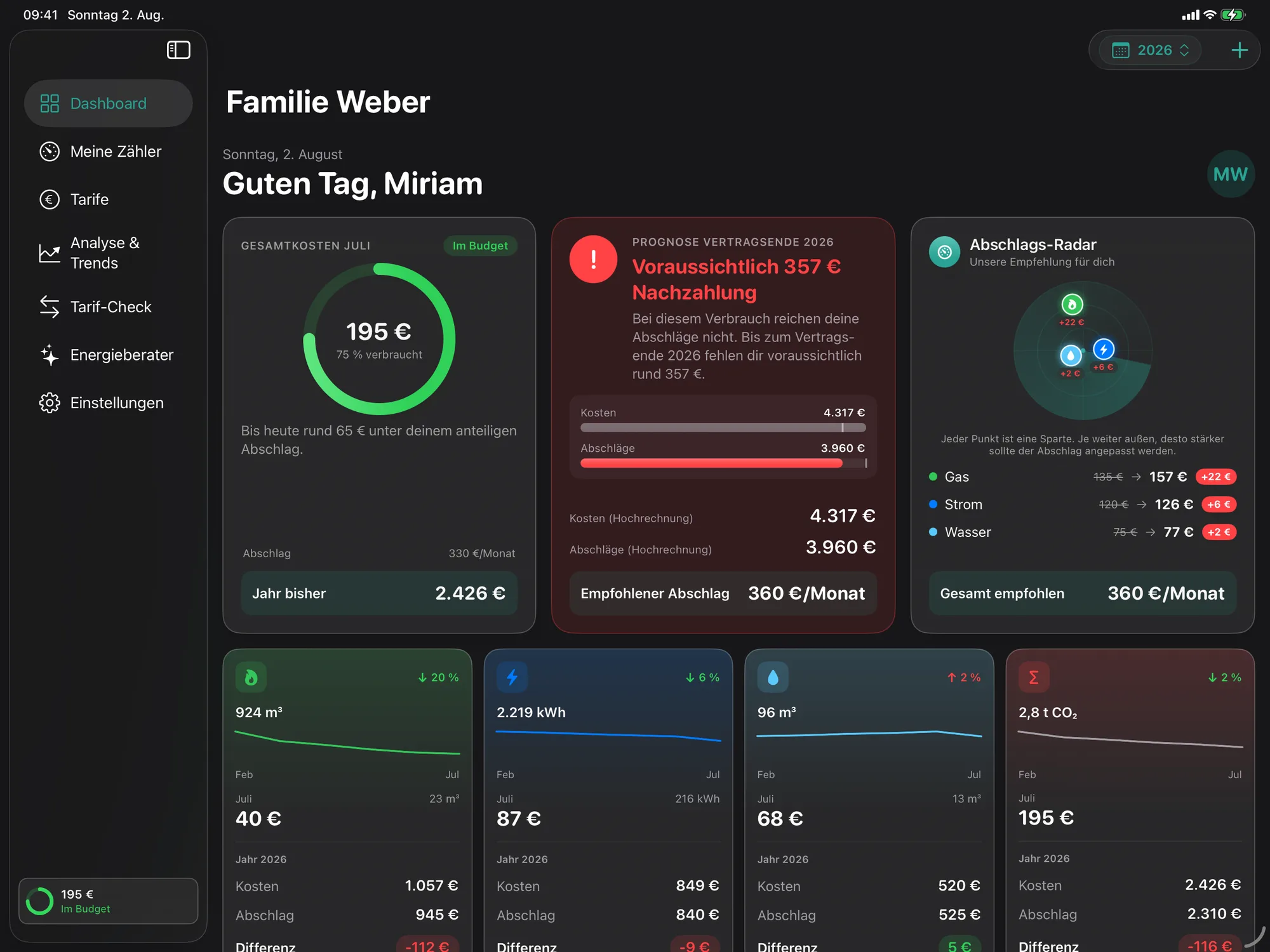
Das Dashboard beantwortet eine Frage: Wie steht mein Jahr gerade da?
Der RingBasis
Im laufenden Jahr zeigt der Ring die Gesamtkosten des aktuellen Monats gegen deinen anteiligen Abschlag. Darunter steht, um wie viel du bis heute darüber oder darunter liegst.
In einem abgeschlossenen Jahr wechselt der Ring auf die Bilanz des ganzen Zeitraums, also erfasste Kosten gegen tatsächlich gezahlte Abschläge.
Ohne hinterlegten Abschlag gibt es keinen Ring, dann steht nur der Betrag.
Sparten-Kacheln und VerlaufBasis
Vier Kacheln zeigen Gas, Strom, Wasser und die Summe, jeweils mit Jahresverbrauch, kleiner Verlaufslinie, Kosten des aktuellen Monats und der Differenz zum Abschlag. Die Gesamt-Kachel zeigt statt des Verbrauchs deine CO₂-Bilanz.
Der Trendpfeil vergleicht den Verbrauch pro Tag mit dem Vormonat, nicht die Monatssumme. Ein angebrochener Monat sieht dadurch nicht künstlich nach Rückgang aus.
Die Verlaufs-Karte fasst nach Kalendermonaten zusammen. Im laufenden Jahr zeigt sie die letzten sechs Monate, in einem abgeschlossenen Jahr alle.
Prognose, Nachzahlung und GuthabenCasira Plus
Die Prognose rechnet deine Jahreskosten hoch und stellt sie den Abschlägen gegenüber. Sie nutzt den saisonalen Verlauf des Vorjahres, wenn eines vorliegt.
Ob es auf eine Nachzahlung oder ein Guthaben hinausläuft, siehst du kostenlos. Die genauen Beträge, also Kosten, Abschläge und der empfohlene Abschlag, gehören zu Plus.
Belastbar wird die Hochrechnung ab etwa 60 erfassten Tagen. Vorher zeigt Casira, wie viele Tage noch fehlen, statt zu raten.
Abschlags-RadarBasis
Jeder Punkt im Radar ist eine Sparte. Je weiter außen, desto stärker sollte der Abschlag angepasst werden. Darunter steht je Sparte der aktuelle und der empfohlene Betrag und was das in Summe ausmacht.
In einem abgeschlossenen Jahr wird daraus der Abschlags-Rückblick: gezahlte Abschläge gegen erfasste Kosten, je Sparte und gesamt.
Ein Hinweis zur Zahl: Als aktueller Abschlag gilt der Wert aus dem Basistarif des Jahres. Wenn du eine Abschlagsänderung als Tarifänderung eingetragen hast, taucht sie hier nicht auf.
HinweiskartenCasira Plus
Über dem Verlauf erscheinen kurze Hinweise zu deinen Zahlen: Verbrauch gestiegen oder gesunken, Preiseffekt, Abschlag prüfen, Vertrag endet bald, Tariflücke.
Die Texte kommen aus dem geprüften Rechenkern, nicht aus einem Sprachmodell. Ohne Plus siehst du den wichtigsten Hinweis, mit Plus alle.
Weggewischte Hinweise merkt sich das Gerät und zeigt sie nicht wieder. Das gilt nur auf diesem Gerät und lässt sich in der App nicht zurücknehmen.
Wenn Casira deine Daten anzweifeltBasis
Ganz oben können vier Warnungen stehen. „Diese Zahlen stimmen vermutlich nicht“ meint eine Periode, die um ein Vielfaches über den übrigen liegt, meist ein Tippfehler oder ein fehlender Stand davor.
„Eine Ablesung gehört nicht in dieses Jahr“ zeigt eine zu lange Periode. „Zwischen den Abrechnungsjahren fehlt ein Stück“ und „Der Startwert dieses Jahres fehlt“ kannst du direkt aus der Karte heraus schließen lassen.
Ein Startwert zeigt übrigens immer 0 Verbrauch. Das ist normal.
Analyse & Trends
Hier schaust du über einen frei gewählten Zeitraum, vergleichst mit dem Vorjahr und nimmst alles als PDF mit.
Zeitraum wählenBasis
Oben stellst du auf Jahr, Monat oder einen freien Zeitraum mit Von- und Bis-Datum um. Darunter steht immer, welcher Zeitraum gerade aktiv ist.
Diese Auswahl gilt nur hier. Sie hängt bewusst nicht am Jahres-Umschalter des Dashboards.
Im Jahr-Modus vergleicht Casira taggenau bis zum gleichen Zeitpunkt im Vorjahr, nicht das halbe Jahr gegen ein ganzes.
Trend, Ausreißer und CO₂Basis
Die Trendanalyse nennt die zwei größten Verbrauchsbewegungen und rechnet, sofern genug Tage erfasst sind, aufs Jahresende hoch. Die Ausreißer-Karte zeigt Perioden, deren Verbrauch pro Tag deutlich vom Schnitt abweicht.
Die CO₂-Bilanz verteilt sich auf Strom, Gas, Wasser und Heizöl. Die Faktoren stehen unter Einstellungen, Kachel „CO₂-Faktoren“, und lassen sich anpassen. Voreingestellt sind 0,363 kg je kWh Strom, 0,20 kg je kWh Gas und 2,66 kg je Liter Heizöl.
Der Wert für Strom ist der deutsche Strommix. Hast du Ökostrom, liegt er näher an null.
Analyse als PDFBasis
Am Seitenende, auf dem Mac in der Werkzeugleiste, stehen „PDF öffnen“ und „Teilen“. Das PDF enthält die Auswertung des gewählten Zeitraums samt Monatsdiagramm und wird bei jeder Zeitraumänderung neu erzeugt.
Es liegt zunächst nur im temporären Ordner. Wenn du es behalten willst, sicher es über Teilen.
Mein EnergiejahrCasira Plus
„Mein Energiejahr“ ist dein persönlicher Rückblick in vier Abschnitten: Das Wichtigste, Deine Kosten, Was gut läuft und Vorschläge. Er wird beim Öffnen erzeugt und liegt danach als Fassung deines aktuellen Datenstands bereit.
Solange sich deine Zahlen nicht ändern, bekommst du denselben Text. Änderst du Daten, entsteht beim nächsten Öffnen automatisch eine neue Fassung. Über „Neu erstellen“ erzwingst du das.
Mit Apple Intelligence formuliert das Gerät die Texte aus, ohne kommt dieselbe Aussage nüchterner. Gerechnet wird in beiden Fällen im geprüften Kern, nicht vom Sprachmodell.
KI-Jahresreport als PDFCasira Plus
Der KI-Jahresreport packt denselben Rückblick in ein PDF und ergänzt ihn um die Zahlen im Überblick, ein Diagramm der letzten dreizehn Monate und Empfehlungen.
Der Knopf heißt „KI-Jahresreport erstellen“, danach öffnet sich das fertige PDF von selbst und lässt sich teilen.
In einem jungen Jahr steht keine Hochrechnung darin. Unter 60 erfassten Tagen wäre sie geraten, das sagt der Report dann auch.
Energieberater
Der Energieberater beantwortet Fragen zu deinen erfassten Zahlen, in ganzen Sätzen und direkt auf deinem Gerät. Er gehört zu Casira Plus.
Fragen stellenCasira Plus
Auf dem iPhone findest du ihn unten im Dashboard als „Energieberater fragen“, auf iPad und Mac als eigenen Bereich in der Seitenleiste, Tastenkürzel Cmd+6.
Über dem Eingabefeld stehen Vorschläge. Sind es echte Auffälligkeiten aus deinen Daten, heißt die Überschrift „Bei dir fällt gerade auf“, sonst „Frag mich zum Beispiel“. Typische Fragen: Warum sind meine Kosten gestiegen? Passt mein Abschlag? Was kostet mich Gas? Wann läuft mein Vertrag aus?
Anschlussfragen funktionieren, wenn sie mit „und“ oder „was ist mit“ anfangen. Übernommen wird dabei die Sparte, nicht die ganze vorige Antwort.
Was er weiß und was nichtCasira Plus
Er kennt deine erfassten Zahlen zu Verbrauch, Kosten und Tarifen. Keine Marktpreise, keine Vorhersagen zum Energiemarkt, keine fremden Haushalte.
Die Zahlen in den Antworten kommen immer aus dem geprüften Rechenkern. Das Sprachmodell formuliert nur. Jede Antwort wird vor dem Anzeigen gegen die echten Werte geprüft, damit keine erfundene Zahl durchrutscht.
Das Gespräch wird nicht gespeichert. Verlässt du den Bereich, ist es weg. Das ist Absicht, deine Fragen sollen nirgends liegen bleiben.
Ohne Apple IntelligenceCasira Plus
Der Berater braucht für frei formulierte Antworten Apple Intelligence, also iPhone 15 Pro oder neuer, iPad oder Mac mit M1 oder neuer, dazu iOS 26 oder macOS 26.
Ohne das bleibt er trotzdem nutzbar. Du bekommst die geprüften Antworten aus deinen Daten, nur in fester Form statt frei formuliert. Ein Streifen über dem Gespräch sagt das an, die Vorschläge unten zeigen, was sicher geht.
Auf Polnisch antwortet der Rechenkern auf Polnisch, das Sprachmodell fällt auf Englisch zurück.
Widget
Das Cockpit-Widget zeigt Kosten, Hochrechnung und Verbrauch deines Abrechnungsjahres. Es kostet nichts und ist ab Version 2.1 dabei.
Widget einrichtenBasis
Auf dem iPhone und iPad drückst du lange auf den Homescreen, tippst oben auf das Plus und suchst nach Casira. Auf dem Mac geht es über die Mitteilungszentrale: Datum und Uhrzeit anklicken, ganz nach unten scrollen, „Widgets bearbeiten“, dann Casira wählen.
Es gibt drei Größen: klein, mittel und groß. Einstellen lässt sich am Widget nichts, es zeigt immer dein aktuelles Abrechnungsjahr.
Widgets für den Sperrbildschirm gibt es nicht.
Was drinstehtBasis
Klein zeigt die Kosten bisher und ob du im Guthaben liegst oder etwas fehlt. Mittel ergänzt die Hochrechnung und den Verbrauch je Sparte.
Groß zeigt zusätzlich, wie weit dein Abrechnungsjahr fortgeschritten ist, die Kosten je Sparte mit Trend gegen das Vorjahr, das Datum der letzten Ablesung und deinen Abschlag.
Solange weniger als 60 Tage erfasst sind, steht statt der Hochrechnung „Hochrechnung folgt“.
Wann es sich aktualisiertBasis
Das Widget rechnet nicht selbst, es zeigt einen Schnappschuss. Den schreibt die App beim Start, beim Wechsel in den Hintergrund und nach jeder gespeicherten Ablesung. Zusätzlich frischt das System es alle sechs Stunden auf.
Direkt nach der Installation ist noch kein Schnappschuss da. Öffne die App einmal, dann füllt sich das Widget.
Auch Sprache und Währung reisen im Schnappschuss mit. Nach einem Sprachwechsel zieht das Widget also erst beim nächsten Schreiben nach.
Siri und Kurzbefehle
Drei Kurzbefehle antworten, ohne die App zu öffnen. Sie rechnen im geprüften Kern und funktionieren deshalb auf jedem Gerät, auch ohne Apple Intelligence.
Die drei KurzbefehleBasis
„Mein Energiejahr“ sagt dir Kosten bisher, Hochrechnung und ob deine Abschläge reichen. „Abschlag & Nachzahlung“ nennt den empfohlenen Abschlag. „Verbrauch abfragen“ nennt den Verbrauch für Strom, Gas oder Wasser.
Sag zum Beispiel „Wie läuft mein Energiejahr in Casira“, „Passt mein Abschlag in Casira“ oder „Wie viel Strom verbrauche ich in Casira“.
Du bekommst einen gesprochenen Satz und eine kleine Ergebniskarte. Die Kurzbefehle stehen nach dem ersten App-Start automatisch in der Kurzbefehle-App und lassen sich dort in eigene Abläufe einbauen. Siri-Sätze gibt es auf Deutsch und Englisch.
Erinnerungen
Casira kann dich ans Ablesen erinnern. Lokal auf dem Gerät, ohne Server, ohne E-Mail und ohne SMS.
Erinnerung einstellenBasis
Einstellungen, Kachel „Erinnerungen“, Schalter „Ans Ablesen erinnern“. Danach wählst du den Rhythmus (wöchentlich, alle zwei Wochen oder monatlich), ein Startdatum und eine Uhrzeit.
Beim ersten Einschalten fragt das System nach der Erlaubnis für Mitteilungen. Ohne die passiert nichts.
Casira plant immer genau eine Erinnerung im Voraus und legt die nächste nach, wenn du die App öffnest oder eine Ablesung speicherst. Wer die App wochenlang nicht öffnet und die Mitteilung ignoriert, bekommt vorerst keine weitere.
App-Schutz
Wenn deine Verbrauchsdaten niemanden sonst angehen, sperr die App.
Face ID, Touch ID und CodeBasis
Einstellungen, Kachel „Sicherheit“, Schalter „App-Schutz“. Beim Einschalten legst du einen vierstelligen Code fest, danach kannst du zusätzlich Face ID oder Touch ID verwenden.
Der Code liegt verschlüsselt im Schlüsselbund deines Geräts, nicht in iCloud und nirgends im Klartext. Die Rückfallebene ist bewusst dein Casira-Code, nicht der Gerätecode.
Gesperrt wird beim Kaltstart der App, nicht bei jedem Wechsel in den Hintergrund. Und: Für einen vergessenen Code gibt es keinen Wiederherstellungsweg. Merk ihn dir gut.
Daten sichern und übertragen
Deine Daten liegen auf deinem Gerät und in deiner privaten iCloud. Wir haben keinen Zugriff darauf.
Sync zwischen iPhone, iPad und MacBasis
Bist du auf allen Geräten mit derselben Apple-ID angemeldet und iCloud für Casira aktiviert, gleichen sich deine Daten automatisch ab. Das ist Basis und bleibt es.
In den Einstellungen steht unter „Datenverwaltung“ die Zeile „Cloud-Backup (iCloud)“. Sie ist fest eingeschaltet und dient der Information.
ExportierenBasis
Einstellungen, Kachel „Datenverwaltung“, „Verbrauch exportieren“. Zur Wahl stehen JSON, CSV, Excel und PDF.
JSON ist das vollständige Backup und lässt sich wieder einlesen: Abrechnungsjahre, Zählerstände, Tarife, Tarifänderungen und deine Angebote aus dem Tarif-Check.
CSV, Excel und PDF enthalten nur die Tabelle der Zählerstände deiner Hauptzähler. Fotobelege, Untermessungen und Heizöl-Lieferungen sind in keinem Export enthalten.
ImportierenBasis
Über „Historische Daten importieren“ liest Casira JSON, CSV und Excel im .xls-Format. Das Format erkennt die App an der Dateiendung.
Der Import ersetzt deine bestehenden Daten, also Abrechnungsjahre, Zähler und Angebote, und fragt vorher nicht noch einmal nach. Profil und Adresse bleiben stehen. Wenn du unsicher bist, exportier vorher einmal als JSON.
Wer über CSV oder Excel importiert, bringt nur Zählerstände mit. Tarife trägst du danach neu ein.
Casira auf dem Mac
Die Mac-Fassung ist keine vergrößerte iPhone-App. Sie hat eine Seitenleiste, Tastenkürzel und ein Modul in der Menüleiste.
Bereiche und TastenkürzelBasis
Die sieben Bereiche liegen in der Seitenleiste und lassen sich mit Cmd+1 bis Cmd+7 direkt anspringen: Dashboard, Meine Zähler, Tarife, Analyse & Trends, Tarif-Check, Energieberater, Einstellungen.
Cmd+Komma springt in den Einstellungsbereich. Ein eigenes Einstellungsfenster gibt es nicht, Einstellungen sind ein Bereich wie jeder andere.
Cmd+N legt an, was zum Bereich passt: im Dashboard und bei den Zählern eine neue Ablesung, bei den Tarifen eine Tarifänderung.
Menüleiste, Tabellen und PDFsBasis
Über das Casira-Symbol in der Menüleiste siehst du den Monatsstand und erfasst eine Ablesung, ohne die App in den Vordergrund zu holen.
Die Ablesungsliste ist auf dem Mac eine echte Tabelle, deren Spalten sich per Klick sortieren lassen. Stift und Papierkorb sitzen sichtbar in der Zeile.
PDFs öffnen sich in der System-Vorschau. Cmd+Z ist bewusst deaktiviert, gelöschte Ablesungen holst du über den Rückgängig-Streifen zurück.
Sprache, Region und Darstellung
Casira spricht Deutsch, Englisch und Polnisch.
Sprache und Region umstellenBasis
Einstellungen, Kachel „Lokalisierung“. Die Sprache bestimmt die App-Texte, die Region das Zahlen- und Datumsformat. Beides wechselt sofort.
Die Währung folgt der Region: Euro in Deutschland und Österreich, Franken in der Schweiz, Dollar in den USA, Pfund in Großbritannien, Złoty in Polen. Umgerechnet wird dabei nichts, nur das Symbol wechselt.
Hell und Dunkel folgt der Systemeinstellung deines Geräts. In der App gibt es dafür keinen eigenen Schalter.
BarrierefreiheitBasis
Casira ist durchgängig für VoiceOver beschriftet. Diagramme und Kacheln werden als ganze Sätze vorgelesen, nicht als Zahlensalat.
Hast du im System die Bewegungsreduktion aktiviert, verzichtet die App auf ihre Animationen. Der Suchstrahl im Abschlags-Radar steht dann still.
Casira Plus, Testzeit und Abo
21 Tage alles offen, danach entscheidest du.
Die ersten 21 TageBasis
Nach der Installation sind alle Plus-Funktionen 21 Tage lang freigeschaltet. Ohne Konto, ohne Zahlungsdaten, ohne Kündigung.
Danach läuft der Zugang von selbst aus. Zähler, Ablesungen, Kosten, Tarife und der Tarif-Check bleiben dir dauerhaft.
Fotos, die du in der Testzeit angeheftet hast, bleiben sichtbar. Nur neue Fotos brauchen dann Plus.
Plus buchen, wiederherstellen, kündigenBasis
Öffne in der App die Plus-Ansicht, zum Beispiel über Einstellungen, Kachel „Casira Plus“, und wähle das Jahres- oder Monatsabo. Die Zahlung läuft über deine Apple-ID.
Hast du schon gekauft und Plus ist nicht aktiv, tipp auf „Käufe wiederherstellen“. Achte darauf, mit derselben Apple-ID angemeldet zu sein, mit der du gekauft hast.
Kündigen läuft über den App Store, nicht über uns: Systemeinstellungen öffnen, oben auf deinen Namen tippen, dann „Abonnements“, dort Casira wählen. Das Abo verlängert sich automatisch, wenn es nicht mindestens 24 Stunden vor Ablauf gekündigt wird.
Häufige Fragen
Meine Daten synchronisieren nicht zwischen iPhone und Mac. Was tun?
Prüf, ob beide Geräte mit derselben Apple-ID angemeldet sind und iCloud für Casira eingeschaltet ist. Danach beide Geräte einmal online öffnen. Der Abgleich läuft über deine private iCloud, wir haben darauf keinen Zugriff.
Warum zeigt meine erste Ablesung im Jahr 0 Verbrauch?
Weil sie der Startwert ist. Sie wiederholt den Endstand des Vorjahres und markiert den Beginn der Rechnung. Das ist richtig so. Lösch sie nicht, sonst fehlt der erste Verbrauch des Jahres.
Kann Casira den Zählerstand vom Foto ablesen?
Nein. Das Foto ist ein Beleg, die Zahl tippst du selbst. Eine Erkennung, die bei jedem zehnten Zähler danebenliegt, wäre schlimmer als keine.
Ich habe den Zähler getauscht bekommen. Muss ich neu anfangen?
Nein. Nimm im alten Zähler „Optionen“, dann „Zähler ersetzen…“. Casira legt den alten still, hängt den neuen an und rechnet über den Wechsel hinweg durch.
Warum steht mein Verbrauch rot und negativ?
Weil ein Zählerstand unter seinem Vorgänger liegt. Meist ist eine Ziffer verrutscht. Öffne die Ablesung mit dem Stift und korrigier den Wert.
Wie schalte ich Casira Plus frei?
In der App die Plus-Ansicht öffnen und das Jahres- oder Monatsabo wählen. Die Zahlung läuft sicher über deine Apple-ID.
Ich habe Casira Plus gekauft, es ist aber nicht aktiv. Was tun?
Tipp in der Plus-Ansicht auf „Käufe wiederherstellen“ und prüf, ob du mit derselben Apple-ID angemeldet bist, mit der du gekauft hast.
Wie kündige ich mein Abo?
Über den App Store. Einstellungen öffnen, oben auf deinen Namen tippen, dann „Abonnements“, und dort Casira wählen.
Wie lösche ich meine Daten?
Einzelne Ablesungen, Zähler und Tarifänderungen löschst du jederzeit in der App. Um alles zu entfernen, lösch die App und dazu die Casira-Daten in deinen iCloud-Einstellungen.
Werden meine Verbrauchsdaten an euch übertragen?
Nein. Deine Daten bleiben auf deinem Gerät und in deiner privaten iCloud. Auch der Energieberater rechnet auf dem Gerät. Mehr dazu in unserer Datenschutzerklärung.
Stand: Casira 2.1. Einzelne Beschriftungen können sich mit späteren Versionen ändern.
Casira works without a subscription, permanently. Adding meters, recording readings, keeping tariffs up to date, seeing your costs, comparing offers and the widget all cost nothing and run with no time limit.
Casira Plus unlocks the features that dig deeper into your numbers: the energy advisor, the exact amounts in the projection, the photo proof for a reading, all insight cards and your personal annual review.
For the first 21 days after installation, Plus is completely open, with no account and no payment details. After that the access runs out by itself, there is nothing to cancel.
Feature
Basic
Casira Plus
Meters, readings, tariffs
✓
✓
Costs, ring, history, utility tiles
✓
✓
Tariff check with offers
✓
✓
Analysis, CO₂ footprint, analysis PDF
✓
✓
Widget and Siri shortcuts
✓
✓
Sync via iCloud
✓
✓
Photo proof for readings
·
✓
Exact amounts in the projection and the year-end result
direction only
✓
Insight cards on the dashboard
the most important one
✓
AI energy advisor
·
✓
My energy year and the AI annual report
·
✓
Setting up
The first time you open Casira, it walks you through seven steps. None of the fields are compulsory, you can fill anything in later.
Setting up in seven stepsBasic
The steps are called Welcome, Language & Region, Profile, Your home, Meters, Tariffs and Done. The top of the screen always shows where you are. "Next" and "Back" move you along, and at the end there's "Let's go".
In the Profile step you enter your name and address and set the start of your billing year. In the Meters step you add your meters, in the Tariffs step your supplier's prices. Both can wait until you have time.
You can run the setup again whenever you like: Settings, the "Setup" tile, then "Restart setup". Your data stays where it is.
Describing your homeBasic
In the "Your home" step, and later under Settings, tile "Household & building", you enter how many people live with you, how big the place is, the building type and the year it was built, and how you heat it. Plus the switches for solar panels, battery storage, wallbox and smart home.
All of it is optional. It helps the analyses put your consumption in context, and none of it leaves your device.
Setting the billing yearBasic
The billing year is the period Casira uses to work out costs, instalments and the projection. It follows your supplier, not the calendar.
You set the starting month under Settings, tile "Home", at "Billing year starts". January means a calendar year, any other month gives you a year that runs across the turn of the year, for example "2026-2027".
Careful: the setting only controls how newly created years are named. Existing billing years stay unchanged.
Bringing data over from another app or spreadsheetBasic
The first setup step offers "Import existing data (JSON)". Later you'll find the import under Settings, tile "Data", as "Import historical data". Casira reads JSON, CSV and Excel in the old .xls format.
Important: the import replaces your existing data completely, so billing years, meters and offers. Your profile and address stay. CSV and Excel only contain meter readings, no tariffs.
For an empty file with the right columns, use "Download import template".
Meters
Casira knows three kinds of meter: gas, electricity and water. Heating oil runs alongside them as a list of deliveries.
Adding a meterBasic
On the iPhone, tap "Meters" in the toolbar above the dashboard; on iPad and Mac, pick "My meters" in the sidebar. The plus for "Add meter" sits at the top right.
You can enter a name, the energy type, the meter number and the room. Only the name is required, without it "Save" stays greyed out.
The unit follows from the energy type and can't be changed: electricity in kWh, gas and water in m³. There's no field for a starting value, that comes from your first reading. Calorific value and correction factor for the gas conversion live in the tariff, not on the meter.
Main meter and submeterBasic
Exactly one main meter per utility feeds into the cost calculation. The switch for it sits in the meter form.
Other meters, say for a heat pump or a wallbox, run alongside as submeters and don't turn up twice in your costs. For a submeter, Casira also shows its share of the main meter as a percentage.
Make a different meter the main one and the previous one loses that status automatically.
Editing or deleting a meterBasic
In the meter list, every card has a three-dot menu on the right. It holds "Edit" and "Delete meter". On the Mac a right-click works too, on the iPhone a long press.
Deleting also removes every reading on that meter. Casira tells you beforehand how many that is, and warns you as well if it's the main meter for a utility. There's no undo for a deleted meter.
If your meter was only swapped out, don't delete it. Use "Replace meter…" instead.
Replacing a meter when the supplier swaps itBasic
Open the old meter, then the "Options" menu, then "Replace meter…". You enter the date of the swap, the final reading on the old meter and the starting reading on the new one.
Casira retires the old meter on the swap date, attaches the new one as its successor and calculates straight through the changeover. In the year overview the curve stays continuous, even though the new device starts at 0.
The new meter inherits the utility, the room and its role as main meter or submeter.
Recording heating oilBasic
You buy heating oil in bulk instead of reading it off a dial. So it isn't a meter in the list, it's a separate "Heating oil" row at the end of "My meters".
For each delivery you enter the delivery date, the amount in litres and the total price. Casira works out the price per litre itself.
Heating oil feeds into the analysis, the CO₂ footprint and the report, but not into the instalment and projection maths. If you don't use heating oil, hide the row from its menu. To bring it back, go to Settings, tile "Home", and use the "Show heating oil" switch.
Readings
The meter reading is the only number Casira really needs from you. Everything else the app works out from it.
Recording a meter readingBasic
On the iPhone you tap the plus at the top right; on iPad and Mac it sits in the toolbar too, keyboard shortcut Cmd+N. On the Mac you can also use the Casira icon in the menu bar, without bringing the app to the front.
You get one field per meter, each with the last reading and its date. Casira skips any field you leave empty, so you don't have to read every meter on the same day.
One reading per meter per day. Enter something for the same day again and the new value replaces the old one.
Attaching a photo of the meterCasira Plus
There's a camera icon next to every input field. Use it to attach a photo of the meter to the reading. On iPhone and iPad you can take the picture there and then or pick one from your library, on the Mac you choose an image file.
The photo is proof, not recognition. Casira doesn't read the number off the picture, you type it yourself. Half-decent recognition would be worse than none.
Without a meter reading, a photo isn't saved. The images sit in your private iCloud. Once your Plus time ends, existing photos stay visible, only new ones need Plus again.
Changing a readingBasic
Open the meter and go to its list of readings. On the iPhone you tap the row, on iPad and Mac you click the pencil icon.
As you type, Casira shows you under "What this changes" how consumption before and after shifts. If the value doesn't fit its neighbours, you get a query before it saves.
If a reading's date puts it in the wrong billing year, Casira says so and moves it across when you save.
Deleting a reading and getting it backBasic
Deleting works from the same menu, on iPad and Mac from the bin icon in the row.
A strip with "Undo" then appears above the list. It lasts twelve seconds, then it's gone. What comes back is the reading including its photo proof.
Cmd+Z deliberately isn't an option here. System undo got tangled up with iCloud, hence the strip of our own.
Making sense of the warnings: starting values, twins, falling readingsBasic
The first reading of a billing year is the starting value. It always shows 0 consumption, which is correct and not a bug. Don't delete it, or the year's first consumption goes missing and every cost and projection for that year is wrong.
At the turn of the year the same day sits in your data twice, once as the close of the old year and once as the basis of the new one. That's deliberate. In the list you only see it once, and editing or deleting affects both copies.
Meter readings normally only go up. Enter a lower value and Casira warns you, but saves it if you insist. The negative consumption then shows up in red in the list.
Checking your dataBasic
Under Settings, tile "Check data", Casira looks for two kinds of trouble: several households in your data, usually leftovers from an import, and readings saved twice on the same day.
The view never tidies up by itself. It shows what it found, and you decide which entry stays.
If you delete a duplicate household, do it on one device and keep the others online while you do. A device that's offline and still knows the household will push it back at the next sync.
Tariffs
A tariff applies from a date. That's why Casira doesn't overwrite old prices, it keeps a history.
Entering a tariffBasic
The "Tariffs" area holds three cards, for gas, electricity and water. Tap a card and enter: for gas and electricity the unit price in euros per kWh, the base price per month and your instalment; for water the cost per m³ and the instalment.
Watch the unit. The unit price is in euros, not cents, so 0.342 for 34.2 cents. The base price in the tariff is a monthly amount.
For gas there's the calorific value and the correction factor on top. Both are on your gas bill, the calorific value usually between 10 and 12, the correction factor around 0.95. Without them Casira calculates with a factor of 1, and then the kWh and the CO₂ footprint are wrong.
Below that you can record the provider, valid-from date, price guarantee and notice period. There's no field for tax or net and gross, so enter the prices exactly as they appear on your bill.
Price change or typoBasic
Change a price that already had a value and Casira asks: "The tariff changed" or "It was a typo".
With a typo, the existing value is corrected and the whole history recalculated. With a real price change you enter a date from which the new price applies. Everything before it keeps the old price.
If a reading period straddles that date, Casira splits it by days and bills both prices pro rata. That's an approximation: the app only knows the consumption for the whole period, not the day-by-day pattern.
Contract historyBasic
Under the cards sits the contract history, merged from all billing years and tariff changes, newest first. The badge on the right shows by how many per cent the unit price changed against the previous one.
New entries go in via "Add tariff change". Enter a new provider name while you're at it and the entry appears as a switch of provider.
To delete, swipe left on the iPhone or use the bin icon on the Mac. A deletion always removes the entire change for one date, after which Casira recalculates the affected periods without it.
What happens at the turn of the yearBasic
A new billing year appears as soon as you record a reading dated in the new cycle. Casira carries the previous year's tariffs over as starting values and the last meter reading as the basis.
Check the prices once the year has turned. Carried over means carried over, not updated.
Tariff check
The tariff check compares offers against your real consumption instead of some model household. It's part of the basic app and costs nothing.
Where the comparison figure comes fromBasic
Casira takes your most recent billing year with at least eleven reading periods, otherwise the newest one you have. The top of the screen says which year that is and how many kWh it's working with.
Electricity and gas are compared. Water stays out of it, there's nothing to switch there.
No readings, no comparison. For an honest calculation Casira needs your real annual consumption.
Adding an offerBasic
Via "Add offer" you enter the provider, tariff name, unit price and base price, plus the new-customer bonus, price guarantee, contract term and notice period.
Mind the base price: in an offer it's an annual amount, in the tariff editor a monthly one. Enter it monthly here and you're out by a factor of 12.
The calculation uses the unit price, the base price and the bonus. Price guarantee, term and notice period sit on the card as information, they don't move the numbers.
How the ranking worksBasic
The order follows the cost in the first year, with the new-customer bonus deducted. That can put an offer with a higher unit price out in front.
So every offer with a bonus also states what comes next: what it costs in the first year, and what it costs each year after that.
"Cheaper" and "More expensive" always refer to your own tariff, never to the other offers.
Switching to a tariffBasic
"Switch to this tariff" takes the offer on as a tariff change from the date you give. Values before that stay as they are, and you can change it any time in the Tariffs area.
The provider, unit price and base price come across, the base price converted to a monthly figure. The bonus, price guarantee, term and your instalment don't come with it, so add those yourself if you need them.
One note on accuracy: the comparison puts your offer against the base price of the billing year. If you've entered a price change mid-year, the Tariffs area may show a different unit price, the one that applies today.
Dashboard
The dashboard answers one question: how is my year going so far?
The ringBasic
During the year the ring shows the total cost of the current month against your pro-rata instalment. Underneath it says how far above or below you are so far.
In a closed year the ring switches to the balance for the whole period, so recorded costs against instalments actually paid.
With no instalment on file there's no ring, just the amount.
Utility tiles and historyBasic
Four tiles cover gas, electricity, water and the total, each with the annual consumption, a small history line, the current month's cost and the difference to the instalment. The total tile shows your CO₂ footprint instead of consumption.
The trend arrow compares consumption per day with the previous month, not the monthly total. A part-finished month therefore doesn't look like an artificial drop.
The history card groups by calendar month. In the current year it shows the last six months, in a closed year all of them.
Projection, back-payment and creditCasira Plus
The projection extrapolates your annual costs and sets them against your instalments. It uses last year's seasonal pattern where there is one.
Whether you're heading for a back-payment or a credit is free to see. The exact amounts, so costs, instalments and the recommended instalment, belong to Plus.
The extrapolation gets solid at around 60 recorded days. Before that Casira shows how many days are still missing rather than guessing.
Payment radarBasic
Each dot on the radar is one utility. The further out, the bigger the adjustment your instalment needs. Below it you get the current and the recommended amount per utility, and what that adds up to.
In a closed year it becomes the payment review: instalments paid against costs recorded, per utility and in total.
One note on the figure: the current instalment is the value from the year's base tariff. If you entered an instalment change as a tariff change, it doesn't show up here.
Insight cardsCasira Plus
Short notes about your numbers appear above the history: consumption up or down, price effect, check instalment, contract ending soon, tariff gap.
The wording comes from the tested calculation core, not from a language model. Without Plus you see the most important note, with Plus all of them.
Notes you swipe away are remembered by the device and won't come back. That applies to that device only and can't be undone in the app.
When Casira doubts your dataBasic
Four warnings can appear right at the top. "These figures probably aren't right" means a period several times higher than the rest, usually a typo or a missing reading before it.
"A reading doesn't belong in this year" flags a period that's too long. "There's a gap between the billing years" and "This year's starting value is missing" you can close straight from the card.
A starting value always shows 0 consumption, by the way. That's normal.
Analysis & Trends
Here you look across a period of your choosing, compare it with last year and take the lot away as a PDF.
Choosing a periodBasic
At the top you switch between Year, Month or a custom period with a From and To date. Underneath it always says which period is active.
This choice applies here only. It deliberately doesn't hang off the dashboard's year switcher.
In Year mode Casira compares to the same point in the previous year, to the day, rather than half a year against a whole one.
Trend, outliers and CO₂Basic
The trend analysis names the two biggest movements in consumption and, if enough days are recorded, extrapolates to the end of the year. The outlier card shows periods whose consumption per day is well off the average.
The CO₂ footprint splits across electricity, gas, water and heating oil. The factors sit under Settings, tile "CO₂ factors", and you can adjust them. The defaults are 0.363 kg per kWh of electricity, 0.20 kg per kWh of gas and 2.66 kg per litre of heating oil.
The figure for electricity is the German grid mix. On a green tariff it's closer to zero.
The analysis as a PDFBasic
At the bottom of the page, on the Mac in the toolbar, you'll find "Open PDF" and "Share". The PDF holds the evaluation of the selected period including the monthly chart, and is generated afresh every time you change the period.
It only sits in the temporary folder at first. If you want to keep it, save it via Share.
My energy yearCasira Plus
"My energy year" is your personal review in four parts: The essentials, Your costs, What's going well and Suggestions. It's generated when you open it and then sits there as a version of your current data.
As long as your numbers don't change, you get the same text. Change the data and a new version appears automatically next time you open it. "Regenerate" forces one.
With Apple Intelligence the device writes the text out properly, without it the same statement comes across more matter-of-factly. Either way the maths happens in the tested core, not in the language model.
The AI annual report as a PDFCasira Plus
The AI annual report packs the same review into a PDF and adds the figures at a glance, a chart of the last thirteen months and recommendations.
The button is called "Create AI annual report", after which the finished PDF opens by itself and can be shared.
In a young year there's no extrapolation in it. Under 60 recorded days it would be guesswork, and the report says so.
Energy advisor
The energy advisor answers questions about the figures you've recorded, in full sentences and right on your device. It belongs to Casira Plus.
Asking questionsCasira Plus
On the iPhone you'll find it at the bottom of the dashboard as "Ask the energy advisor", on iPad and Mac as its own area in the sidebar, keyboard shortcut Cmd+6.
Suggestions sit above the input field. If they're genuine findings from your data, the heading reads "What stands out right now", otherwise "For example, ask me". Typical questions: Why did my costs go up? Is my instalment right? What does gas cost me? When does my contract end?
Follow-up questions work if they start with "and" or "what about". What carries over is the utility, not the whole previous answer.
What it knows and what it doesn'tCasira Plus
It knows the figures you've recorded on consumption, costs and tariffs. No market prices, no forecasts about the energy market, no other households.
The numbers in the answers always come from the tested calculation core. The language model only does the wording. Every answer is checked against the real values before it's shown, so no invented number slips through.
The conversation isn't saved. Leave the area and it's gone. That's deliberate, your questions shouldn't be left lying around anywhere.
Without Apple IntelligenceCasira Plus
For freely worded answers the advisor needs Apple Intelligence, so an iPhone 15 Pro or newer, an iPad or Mac with M1 or newer, plus iOS 26 or macOS 26.
Without it, it still works. You get the checked answers from your data, just in fixed form rather than freely worded. A strip above the conversation says so, and the suggestions below show what's safe to ask.
In Polish the calculation core answers in Polish, while the language model falls back to English.
Widget
The dashboard widget shows the costs, projection and consumption for your billing year. It costs nothing and has been there since version 2.1.
Setting up the widgetBasic
On iPhone and iPad you press and hold the home screen, tap the plus at the top and search for Casira. On the Mac it goes through Notification Centre: click the date and time, scroll right down, "Edit Widgets", then pick Casira.
There are three sizes: small, medium and large. There's nothing to configure on the widget, it always shows your current billing year.
There are no lock screen widgets.
What's in itBasic
Small shows the cost so far and whether you're in credit or short. Medium adds the projection and the consumption per utility.
Large also shows how far your billing year has progressed, the cost per utility with a trend against last year, the date of your last reading and your instalment.
As long as fewer than 60 days are recorded, "Projection pending" appears instead of the projection.
When it updatesBasic
The widget doesn't calculate anything itself, it shows a snapshot. The app writes that snapshot at launch, when it moves into the background and after every saved reading. On top of that the system refreshes it every six hours.
Straight after installation there's no snapshot yet. Open the app once and the widget fills up.
Language and currency travel in the snapshot too. After a language change the widget only catches up at the next write.
Siri and shortcuts
Three shortcuts answer without opening the app. They calculate in the tested core, so they work on any device, even without Apple Intelligence.
The three shortcutsBasic
"My energy year" tells you the cost so far, the projection and whether your instalments are enough. "Instalment & back-payment" names the recommended instalment. "Check consumption" gives you the consumption for electricity, gas or water.
Say something like "How is my energy year in Casira", "Do I need to pay extra in Casira" or "How much electricity do I use in Casira".
You get a spoken sentence and a small result card. The shortcuts appear in the Shortcuts app automatically after the first app launch and can be built into your own routines there. Siri phrases exist in German and English.
Reminders
Casira can remind you to take a reading. Locally on the device, no server, no email and no text message.
Setting up a reminderBasic
Settings, tile "Reminders", switch "Reading reminder". Then you pick the frequency (weekly, every 2 weeks or monthly), a start date and a time.
The first time you switch it on, the system asks for permission to send notifications. Without that, nothing happens.
Casira always schedules exactly one reminder ahead and queues the next one when you open the app or save a reading. Ignore the notification and leave the app closed for weeks, and you won't get another for now.
App lock
If your consumption data is nobody else's business, lock the app.
Face ID, Touch ID and a codeBasic
Settings, tile "Security", switch "App lock". When you switch it on you set a four-digit code, after which you can also use Face ID or Touch ID.
The code sits encrypted in your device's keychain, not in iCloud and nowhere in plain text. The fallback is deliberately your Casira code, not your device passcode.
The app locks on a cold start, not every time it moves into the background. And: there's no recovery route for a forgotten code. Remember it well.
Backing up and moving your data
Your data sits on your device and in your private iCloud. We have no access to it.
Sync between iPhone, iPad and MacBasic
If you're signed in with the same Apple ID on every device and iCloud is switched on for Casira, your data syncs automatically. That's part of the basic app and it stays that way.
In Settings, under "Data", there's a row called "Cloud backup (iCloud)". It's permanently on and is there for information.
ExportingBasic
Settings, tile "Data", "Export consumption". You can choose JSON, CSV, Excel or PDF.
JSON is the complete backup and can be read back in: billing years, meter readings, tariffs, tariff changes and your offers from the tariff check.
CSV, Excel and PDF only contain the table of readings from your main meters. Photo proofs, submeters and heating oil deliveries are in no export.
ImportingBasic
Via "Import historical data" Casira reads JSON, CSV and Excel in .xls format. The app works out the format from the file extension.
The import replaces your existing data, so billing years, meters and offers, and it doesn't ask again beforehand. Your profile and address stay. If you're unsure, export as JSON first.
Import via CSV or Excel and you only bring meter readings with you. You'll have to enter the tariffs again afterwards.
Casira on the Mac
The Mac version isn't a blown-up iPhone app. It has a sidebar, keyboard shortcuts and a module in the menu bar.
Areas and keyboard shortcutsBasic
The seven areas sit in the sidebar and can be reached directly with Cmd+1 to Cmd+7: Dashboard, My meters, Tariffs, Analysis & Trends, Tariff check, Energy advisor, Settings.
Cmd+comma jumps into the settings area. There's no separate settings window, settings are an area like any other.
Cmd+N creates whatever fits the area: a new reading in the dashboard and on the meters, a tariff change in the tariffs.
Menu bar, tables and PDFsBasic
The Casira icon in the menu bar shows you the month so far and lets you record a reading without bringing the app to the front.
On the Mac the list of readings is a proper table whose columns sort with a click. The pencil and the bin sit visibly in the row.
PDFs open in the system Preview app. Cmd+Z is deliberately disabled, you get deleted readings back from the undo strip.
Language, region and appearance
Casira speaks German, English and Polish.
Changing language and regionBasic
Settings, tile "Localization". The language sets the app's texts, the region the number and date format. Both switch straight away.
The currency follows the region: euros in Germany and Austria, francs in Switzerland, dollars in the US, pounds in the UK, złoty in Poland. Nothing is converted, only the symbol changes.
Light and dark follow your device's system setting. There's no switch for it in the app.
AccessibilityBasic
Casira is labelled for VoiceOver throughout. Charts and tiles are read out as whole sentences, not as a jumble of numbers.
If you have reduced motion switched on in the system, the app drops its animations. The sweeping beam in the payment radar then stands still.
Casira Plus, trial and subscription
21 days with everything open, then you decide.
The first 21 daysBasic
After installation all Plus features are unlocked for 21 days. No account, no payment details, nothing to cancel.
After that the access runs out by itself. Meters, readings, costs, tariffs and the tariff check stay yours for good.
Photos you attached during the trial stay visible. Only new photos need Plus after that.
Buying, restoring and cancelling PlusBasic
Open the Plus view in the app, for example via Settings, tile "Casira Plus", and pick the annual or monthly subscription. Payment runs through your Apple ID.
If you've already bought it and Plus isn't active, tap "Restore purchases". Make sure you're signed in with the same Apple ID you bought it with.
Cancelling goes through the App Store, not through us: open System Settings, tap your name at the top, then "Subscriptions", and pick Casira there. The subscription renews automatically unless it's cancelled at least 24 hours before it expires.
Common questions
My data isn't syncing between iPhone and Mac. What now?
Check that both devices are signed in with the same Apple ID and that iCloud is switched on for Casira. Then open both devices once while they're online. The sync runs through your private iCloud, which we have no access to.
Why does my first reading of the year show 0 consumption?
Because it's the starting value. It repeats last year's final reading and marks where the calculation begins. That's correct. Don't delete it, or the year's first consumption goes missing.
Can Casira read the meter reading off a photo?
No. The photo is proof, you type the number yourself. Recognition that gets one meter in ten wrong would be worse than none.
My meter has been swapped. Do I have to start again?
No. In the old meter pick "Options", then "Replace meter…". Casira retires the old one, attaches the new one and calculates straight through the changeover.
Why is my consumption red and negative?
Because a meter reading is lower than the one before it. Usually a digit has slipped. Open the reading with the pencil and correct the value.
How do I unlock Casira Plus?
Open the Plus view in the app and pick the annual or monthly subscription. Payment runs securely through your Apple ID.
I've bought Casira Plus but it isn't active. What now?
Tap "Restore purchases" in the Plus view and check that you're signed in with the same Apple ID you bought it with.
How do I cancel my subscription?
Through the App Store. Open Settings, tap your name at the top, then "Subscriptions", and pick Casira there.
How do I delete my data?
You can delete individual readings, meters and tariff changes in the app at any time. To remove everything, delete the app and the Casira data in your iCloud settings.
Is my consumption data sent to you?
No. Your data stays on your device and in your private iCloud. The energy advisor calculates on the device too. There's more on this in our privacy policy.
Correct as of Casira 2.1. Individual labels may change in later versions.
Pomoc
Pomoc Casira
Masz pytanie albo potrzebujesz pomocy? Napisz do nas:
Casira działa bez abonamentu i bez końca. Zakładanie liczników, wpisywanie odczytów, prowadzenie taryf, podgląd kosztów, porównywanie ofert i widżet nic nie kosztują i nie mają limitu czasu.
Casira Plus odblokowuje to, co sięga głębiej w Twoje liczby: doradcę energetycznego, dokładne kwoty w prognozie, zdjęcie jako dowód odczytu, wszystkie wskazówki i osobiste podsumowanie roku.
Przez pierwsze 21 dni po instalacji Plus jest w pełni otwarty, bez konta i bez danych do płatności. Potem dostęp wygasa sam, nie musisz nic wypowiadać.
Funkcja
Podstawa
Casira Plus
Liczniki, odczyty, taryfy
✓
✓
Koszty, pierścień, przebieg, kafelki mediów
✓
✓
Porównanie taryf z ofertami
✓
✓
Analiza, bilans CO₂, PDF z analizą
✓
✓
Widżet i skróty Siri
✓
✓
Synchronizacja przez iCloud
✓
✓
Zdjęcie jako dowód odczytu
·
✓
Dokładne kwoty w prognozie i w wyniku roku
tylko kierunek
✓
Wskazówki na pulpicie
najważniejsza
✓
Doradca energetyczny AI
·
✓
Mój rok energetyczny i raport roczny AI
·
✓
Konfiguracja
Przy pierwszym uruchomieniu Casira przeprowadzi Cię przez siedem kroków. Pól obowiązkowych tu nie ma, wszystko możesz uzupełnić później.
Konfiguracja w siedmiu krokachPodstawa
Kroki nazywają się Powitanie, Język i region, Profil, Twój dom, Liczniki, Taryfy i Gotowe. U góry zawsze widzisz, gdzie właśnie jesteś. Poruszasz się przyciskami „Dalej” i „Wstecz”, na końcu czeka „Zaczynamy”.
W kroku Profil wpisujesz imię, nazwisko i adres oraz ustalasz początek swojego roku rozliczeniowego. W kroku Liczniki zakładasz swoje liczniki, w kroku Taryfy wpisujesz ceny swoich dostawców. Jedno i drugie możesz spokojnie zrobić później.
Konfigurację możesz powtórzyć w dowolnej chwili: Ustawienia, kafelek „Konfiguracja”, potem „Uruchom konfigurację ponownie”. Twoje dane przy tym zostają.
Opisz swój domPodstawa
W kroku „Twój dom”, a później w Ustawieniach, kafelek „Gospodarstwo i budynek”, wpisujesz, ile osób u Ciebie mieszka, jaka jest powierzchnia mieszkalna, jaki to rodzaj budynku i rok budowy oraz czym ogrzewasz. Do tego przełączniki na fotowoltaikę, magazyn energii, ładowarkę do auta i inteligentny dom.
Wszystkie dane są dobrowolne. Pomagają analizom umieścić Twoje zużycie w kontekście i nie opuszczają Twojego urządzenia.
Ustal rok rozliczeniowyPodstawa
Rok rozliczeniowy to okres, za który Casira liczy koszty, zaliczki i prognozę. Wyznacza go Twój dostawca, a nie kalendarz.
Miesiąc startowy ustawiasz w Ustawieniach, kafelek „Mieszkanie i dom”, w pozycji „Początek roku rozliczeniowego”. Styczeń oznacza rok kalendarzowy, każdy inny miesiąc daje rocznik przechodzący przez przełom roku, na przykład „2026-2027”.
Uwaga: to ustawienie steruje tylko nazewnictwem nowo tworzonych lat. Istniejące lata rozliczeniowe pozostają bez zmian.
Przenieś dane z innej aplikacji albo z arkuszaPodstawa
W pierwszym kroku konfiguracji jest „Zaimportuj dotychczasowe dane (JSON)”. Później import znajdziesz w Ustawieniach, kafelek „Dane”, jako „Importuj dane historyczne”. Casira czyta JSON, CSV i Excel w starym formacie .xls.
Ważne: import całkowicie zastępuje Twoje dotychczasowe dane, czyli lata rozliczeniowe, liczniki i oferty. Profil i adres zostają. CSV i Excel zawierają tylko stany liczników, bez taryf.
Pusty plik z właściwymi kolumnami dostaniesz przez „Pobierz szablon importu”.
Liczniki
Casira zna trzy rodzaje liczników: gaz, prąd i wodę. Olej opałowy idzie obok, jako lista dostaw.
Załóż licznikPodstawa
Na iPhonie wchodzisz na pasku narzędzi nad pulpitem w „Liczniki”, na iPadzie i Macu na pasku bocznym w „Moje liczniki”. W prawym górnym rogu siedzi plus, czyli „Dodaj licznik”.
Wpisać możesz nazwę, rodzaj energii, numer licznika i pomieszczenie. Obowiązkowa jest tylko nazwa, bez niej „Zapisz” pozostaje szary.
Jednostka wynika z rodzaju energii i nie da się jej zmienić: prąd w kWh, gaz i woda w m³. Stanu początkowego nie wpisujesz w formularzu, powstaje on jako pierwszy odczyt. Wartość opałowa i współczynnik korekcyjny do przeliczania gazu stoją w taryfie, nie przy liczniku.
Licznik główny i podlicznikPodstawa
Na każde medium do rachunku kosztów wchodzi dokładnie jeden licznik główny. Przełącznik do tego znajdziesz w formularzu licznika.
Kolejne liczniki, na przykład dla pompy ciepła albo ładowarki, idą jako podliczniki i nie pojawiają się w kosztach po raz drugi. Przy podliczniku Casira pokazuje dodatkowo jego udział w liczniku głównym w procentach.
Gdy zrobisz licznikiem głównym inny licznik, dotychczasowy traci ten status automatycznie.
Edytuj albo usuń licznikPodstawa
Na liście liczników przy każdej karcie po prawej siedzi menu z trzema kropkami. Są w nim „Edytuj” i „Usuń licznik”. Na Macu działa też prawy przycisk myszy, na iPhonie długie przytrzymanie.
Usunięcie kasuje również wszystkie odczyty tego licznika. Casira mówi wcześniej, ile ich jest, i ostrzega dodatkowo, gdy chodzi o licznik główny danego medium. Dla usuniętych liczników nie ma cofania.
Jeśli licznik został tylko wymieniony, nie usuwaj go. Weź zamiast tego „Wymień licznik…”.
Wymień licznik, gdy dostawca go zmieniaPodstawa
Otwórz stary licznik, potem menu „Opcje”, potem „Wymień licznik…”. Wpisujesz datę wymiany, stan końcowy starego i stan początkowy nowego licznika.
Casira wyłącza stary licznik z dniem wymiany, dopina nowy jako następcę i liczy dalej ponad tą zmianą. W przeglądzie roku krzywa zostaje ciągła, nawet jeśli nowe urządzenie zaczyna od 0.
Nowy licznik dziedziczy medium, pomieszczenie i rolę licznika głównego albo podlicznika.
Zapisuj olej opałowyPodstawa
Olej opałowy kupujesz na zapas, zamiast go odczytywać. Dlatego nie stoi jako licznik na liście, tylko jako osobny wiersz „Olej opałowy” na końcu „Moich liczników”.
Przy każdej dostawie wpisujesz datę dostawy, ilość w litrach i cenę łączną. Cenę za litr Casira wylicza sama.
Olej opałowy wchodzi do analizy, bilansu CO₂ i raportu, ale nie do rachunku zaliczek i prognozy. Jeśli oleju nie masz, ukryj ten wiersz przez jego menu. Z powrotem włączysz go w Ustawieniach, kafelek „Mieszkanie i dom”, przełącznikiem „Pokaż olej opałowy”.
Odczyty
Stan licznika to jedyna liczba, której Casira naprawdę od Ciebie potrzebuje. Całą resztę aplikacja z tego wylicza.
Wpisz stan licznikaPodstawa
Na iPhonie stukasz w prawym górnym rogu w plus, na iPadzie i Macu leży on tak samo na pasku narzędzi, skrót Cmd+N. Na Macu idzie to dodatkowo przez ikonę Casiry na pasku menu, bez przełączania się do aplikacji.
Widzisz jedno pole na licznik, a przy nim ostatni stan z datą. Pola, które zostawisz puste, Casira pomija. Nie musisz więc odczytywać wszystkich liczników tego samego dnia.
Na licznik i dzień obowiązuje jeden stan. Jeśli dla tego samego dnia wpiszesz coś jeszcze raz, nowa wartość zastąpi starą.
Dopnij zdjęcie licznikaCasira Plus
Obok każdego pola siedzi ikona aparatu. Przez nią dopinasz do odczytu zdjęcie licznika. Na iPhonie i iPadzie możesz zrobić zdjęcie od razu albo wziąć obraz z biblioteki, na Macu wybierasz plik graficzny.
Zdjęcie jest dowodem, nie rozpoznawaniem. Casira nie odczytuje liczby z obrazu, tę wpisujesz sam. Połowiczne rozpoznawanie byłoby gorsze niż żadne.
Bez stanu licznika zdjęcie nie zostanie zapisane. Obrazy leżą w Twoim prywatnym iCloud. Po zakończeniu Twojego okresu Plus dotychczasowe zdjęcia zostają widoczne, tylko nowe znów wymagają Plus.
Zmień odczytPodstawa
Otwórz licznik i wejdź na listę odczytów. Na iPhonie stukasz w wiersz, na iPadzie i Macu klikasz ikonę ołówka.
W trakcie wpisywania Casira pokazuje pod nagłówkiem „Co się przez to zmieni”, jak przesuwa się zużycie przed i po. Jeśli wartość nie pasuje do sąsiednich, przed zapisem pojawi się pytanie.
Gdy odczyt według swojej daty leży w niewłaściwym roku rozliczeniowym, Casira to zgłasza i przy zapisie przenosi go tam, gdzie trzeba.
Usuń odczyt i przywróć goPodstawa
Usuwanie idzie przez to samo menu, na iPadzie i Macu przez ikonę kosza w wierszu.
Potem nad listą pojawia się pasek z „Cofnij”. Trzyma się dwanaście sekund, potem znika. Odczyt wraca razem ze zdjęciem.
Cmd+Z celowo tego nie robi. Systemowe cofanie zacinało się z iCloud, dlatego jest własny pasek.
Zrozum ostrzeżenia: wartości początkowe, bliźniaki, spadające stanyPodstawa
Pierwszy stan roku rozliczeniowego to wartość początkowa. Zawsze pokazuje 0 zużycia, tak ma być i nie jest to błąd. Nie usuwaj jej, bo inaczej zabraknie pierwszego zużycia roku, a wszystkie koszty i prognozy tego roku przestaną się zgadzać.
Na przełomie roku ten sam dzień stoi w danych dwa razy, raz jako zamknięcie starego, raz jako podstawa nowego roku. Tak ma być. Na liście widzisz go tylko raz, zmiana i usunięcie działają na obie kopie.
Stany liczników normalnie tylko rosną. Jeśli wpiszesz niższą wartość, Casira ostrzeże, ale zapisze ją, gdy będziesz obstawać przy swoim. Ujemne zużycie stoi wtedy na liście na czerwono.
Sprawdź danePodstawa
W Ustawieniach, kafelek „Sprawdź dane”, Casira szuka dwóch rodzajów kłopotów: kilku gospodarstw domowych w Twoich danych, zwykle resztek po imporcie, oraz odczytów zapisanych dwa razy tego samego dnia.
Ten widok nigdy nie sprząta sam. Pokazuje, co znalazł, a Ty decydujesz, który wpis zostaje.
Jeśli usuwasz zdublowane gospodarstwo, zrób to na jednym urządzeniu, a pozostałe zostaw w tym czasie online. Urządzenie, które jest offline i wciąż zna to gospodarstwo, przy następnej synchronizacji wgra je z powrotem.
Taryfy
Taryfa obowiązuje od konkretnej daty. Dlatego Casira nie nadpisuje starych cen, tylko prowadzi historię.
Wpisz taryfęPodstawa
W obszarze „Taryfy” stoją trzy karty: gaz, prąd i woda. Stuknij w kartę i wpisz: przy gazie i prądzie cenę za jednostkę w euro za kWh, cenę podstawową za miesiąc i swoją zaliczkę, przy wodzie koszt za m³ i zaliczkę.
Uważaj na jednostkę. Cena za jednostkę jest w euro, nie w centach, czyli 0,342 dla 34,2 centa. Cena podstawowa w taryfie to kwota miesięczna.
Przy gazie dochodzą wartość opałowa i współczynnik korekcyjny. Oba stoją na Twoim rachunku za gaz, wartość opałowa zwykle między 10 a 12, współczynnik korekcyjny około 0,95. Bez nich Casira liczy z czynnikiem 1 i wtedy kWh oraz bilans CO₂ się nie zgadzają.
Niżej możesz zapisać dostawcę, datę obowiązywania, gwarancję ceny i okres wypowiedzenia. Pola na podatek albo na kwoty netto i brutto nie ma, wpisuj ceny tak, jak stoją na rachunku.
Zmiana ceny czy literówkaPodstawa
Gdy zmieniasz cenę, która wcześniej miała już jakąś wartość, Casira dopyta: „Cena się zmieniła” czy „To była pomyłka”.
Przy pomyłce dotychczasowa wartość zostaje poprawiona, a cała historia przeliczona od nowa. Przy prawdziwej zmianie ceny wpisujesz datę, od której nowa cena obowiązuje. Wszystko przed nią zostaje ze starą ceną.
Jeśli okres odczytu obejmuje taką datę, Casira dzieli go proporcjonalnie do dni i rozlicza obie ceny częściowo. To przybliżenie: aplikacja zna tylko zużycie całego okresu, nie jego rozkład na poszczególne dni.
Historia umówPodstawa
Pod kartami leży historia umów, scalona ze wszystkich lat rozliczeniowych i zmian taryf, najnowsze na górze. Plakietka po prawej pokazuje, o ile procent zmieniła się cena za jednostkę wobec poprzedniej.
Nowe wpisy zakładasz przez „Dodaj zmianę taryfy”. Jeśli wpiszesz przy tym nazwę nowego dostawcy, wpis pojawi się jako zmiana dostawcy.
Usuwanie idzie na iPhonie przez przesunięcie w lewo, na Macu przez ikonę kosza. Usuwana jest zawsze cała zmiana z danej daty, potem Casira przelicza objęte nią okresy bez niej.
Co dzieje się na przełomie rokuPodstawa
Nowy rok rozliczeniowy powstaje w chwili, gdy wpiszesz odczyt z datą w nowym cyklu. Casira przejmuje przy tym taryfy z poprzedniego roku jako wartości wyjściowe, a ostatni stan licznika jako podstawę.
Sprawdź ceny po przełomie roku. Przejęte znaczy przejęte, nie zaktualizowane.
Porównanie taryf
Porównanie taryf zestawia oferty z Twoim rzeczywistym zużyciem, a nie z modelowym gospodarstwem. Należy do wersji podstawowej i nic nie kosztuje.
Skąd bierze się zużycie do porównaniaPodstawa
Casira bierze Twój najnowszy rok rozliczeniowy z co najmniej jedenastoma okresami odczytu, a jeśli takiego nie ma, po prostu najnowszy dostępny. U góry stoi, który to rok i z iloma kWh liczy.
Porównywane są prąd i gaz. Woda zostaje poza tym, tam nie ma czego zmieniać.
Bez odczytów nie ma porównania. Do uczciwego rachunku Casira potrzebuje Twojego rzeczywistego zużycia rocznego.
Wpisz ofertęPodstawa
Przez „Dodaj ofertę” wpisujesz dostawcę, nazwę taryfy, cenę za jednostkę i cenę podstawową, a do tego bonus dla nowych klientów, gwarancję ceny, okres umowy i okres wypowiedzenia.
Uwaga na cenę podstawową: w ofercie to kwota roczna, w edytorze taryf miesięczna. Kto wpisze tu kwotę miesięczną, pomyli się o czynnik 12.
Do rachunku wchodzą cena za jednostkę, cena podstawowa i bonus. Gwarancja ceny, okres umowy i wypowiedzenie stoją na karcie jako informacja, liczb nie zmieniają.
Jak działa sortowaniePodstawa
Kolejność wynika z kosztów w pierwszym roku, po odjęciu bonusu dla nowych klientów. Oferta z wyższą ceną za jednostkę może przez to wyjść na prowadzenie.
Dlatego przy każdej ofercie z bonusem stoi też cena w kolejnych latach: ile kosztuje w pierwszym roku i ile potem co roku.
„Taniej” i „Drożej” odnoszą się zawsze do Twojej własnej taryfy, a nie do pozostałych ofert.
Przejdź na inną taryfęPodstawa
„Przełącz na tę taryfę” przejmuje ofertę jako zmianę taryfy od daty, którą podasz. Wartości wcześniejsze zostają, a zmienić to możesz w każdej chwili w obszarze Taryfy.
Przejmowane są dostawca, cena za jednostkę i cena podstawowa, przeliczona na miesiąc. Bonus, gwarancja ceny, okres umowy i Twoja zaliczka nie wędrują razem z nimi, te w razie potrzeby wpisujesz sam.
Uwaga co do dokładności: porównanie zestawia Twoją ofertę z ceną bazową roku rozliczeniowego. Jeśli wpisałeś zmianę ceny w trakcie roku, obszar Taryfy może pokazywać inną, dziś obowiązującą cenę za jednostkę.
Pulpit
Pulpit odpowiada na jedno pytanie: jak stoi mój rok?
PierścieńPodstawa
W trwającym roku pierścień pokazuje koszty całkowite bieżącego miesiąca wobec Twojej proporcjonalnej zaliczki. Pod spodem stoi, o ile jesteś do dziś powyżej albo poniżej.
W roku zamkniętym pierścień przechodzi na bilans całego okresu, czyli zapisane koszty wobec faktycznie zapłaconych zaliczek.
Bez wpisanej zaliczki nie ma pierścienia, wtedy stoi tylko kwota.
Kafelki mediów i przebiegPodstawa
Cztery kafelki pokazują gaz, prąd, wodę i sumę, każdy z rocznym zużyciem, małą linią przebiegu, kosztami bieżącego miesiąca i różnicą wobec zaliczki. Kafelek zbiorczy pokazuje zamiast zużycia Twój bilans CO₂.
Strzałka trendu porównuje zużycie na dzień z poprzednim miesiącem, a nie sumy miesięczne. Rozpoczęty miesiąc nie wygląda przez to sztucznie na spadek.
Karta przebiegu zbiera dane według miesięcy kalendarzowych. W trwającym roku pokazuje ostatnie sześć miesięcy, w roku zamkniętym wszystkie.
Prognoza, dopłata i nadpłataCasira Plus
Prognoza wylicza Twoje koszty roczne i zestawia je z zaliczkami. Korzysta przy tym z sezonowego przebiegu poprzedniego roku, o ile taki jest.
Czy wyjdzie dopłata, czy nadpłata, widzisz za darmo. Dokładne kwoty, czyli koszty, zaliczki i zalecana zaliczka, należą do Plus.
Wiarygodna staje się ta prognoza od mniej więcej 60 zapisanych dni. Wcześniej Casira pokazuje, ilu dni jeszcze brakuje, zamiast zgadywać.
Radar zaliczekPodstawa
Każdy punkt na radarze to jedno medium. Im dalej od środka, tym mocniej trzeba zmienić zaliczkę. Pod spodem stoi dla każdego medium kwota obecna i zalecana oraz to, ile daje to w sumie.
W roku zamkniętym powstaje z tego przegląd zaliczek: zapłacone zaliczki wobec zapisanych kosztów, dla każdego medium i łącznie.
Uwaga co do tej liczby: jako obecna zaliczka liczy się wartość z taryfy bazowej danego roku. Jeśli zmianę zaliczki wpisałeś jako zmianę taryfy, tutaj się ona nie pojawi.
WskazówkiCasira Plus
Nad przebiegiem pojawiają się krótkie wskazówki do Twoich liczb: wyższe albo niższe zużycie, efekt cenowy, sprawdź zaliczkę, umowa wkrótce się kończy, luka taryfowa.
Teksty pochodzą ze sprawdzonego rdzenia obliczeniowego, a nie z modelu językowego. Bez Plus widzisz najważniejszą wskazówkę, z Plus wszystkie.
Zamknięte wskazówki urządzenie zapamiętuje i już ich nie pokazuje. Dotyczy to tylko tego urządzenia i w aplikacji nie da się tego cofnąć.
Gdy Casira wątpi w Twoje danePodstawa
Na samej górze mogą stać cztery ostrzeżenia. „Te liczby chyba się nie zgadzają” oznacza okres, który jest wielokrotnie wyższy od pozostałych, zwykle literówka albo brakujący stan wcześniej.
„Ten odczyt nie należy do tego roku” wskazuje na zbyt długi okres. „Między latami rozliczeniowymi brakuje kawałka” i „Brakuje wartości początkowej tego roku” możesz zamknąć wprost z karty.
Wartość początkowa zawsze zresztą pokazuje 0 zużycia. To normalne.
Analiza i trendy
Tu patrzysz na dowolnie wybrany okres, porównujesz z poprzednim rokiem i zabierasz wszystko jako PDF.
Wybierz okresPodstawa
U góry przełączasz na rok, miesiąc albo dowolny okres z datą od i do. Pod spodem zawsze stoi, który okres jest właśnie aktywny.
Ten wybór działa tylko tutaj. Celowo nie jest powiązany z przełącznikiem lat na pulpicie.
W trybie roku Casira porównuje co do dnia z tym samym momentem poprzedniego roku, a nie pół roku z całym.
Trend, wartości odstające i CO₂Podstawa
Analiza trendów wskazuje dwa największe ruchy zużycia i, o ile zapisano dość dni, wylicza je na koniec roku. Karta wartości odstających pokazuje okresy, w których zużycie na dzień wyraźnie odbiega od średniej.
Bilans CO₂ rozkłada się na prąd, gaz, wodę i olej opałowy. Współczynniki stoją w Ustawieniach, kafelek „Współczynniki CO₂”, i da się je zmienić. Domyślnie jest to 0,363 kg na kWh prądu, 0,20 kg na kWh gazu i 2,66 kg na litr oleju opałowego.
Wartość dla prądu to niemiecki miks energetyczny. Jeśli masz zieloną energię, jest ona bliżej zera.
Analiza jako PDFPodstawa
Na końcu strony, a na Macu na pasku narzędzi, stoją „Otwórz PDF” i „Udostępnij”. PDF zawiera analizę wybranego okresu razem z wykresem miesięcznym i powstaje na nowo przy każdej zmianie okresu.
Na początku leży tylko w folderze tymczasowym. Jeśli chcesz go zachować, zapisz go przez Udostępnij.
Mój rok energetycznyCasira Plus
„Mój rok energetyczny” to Twoje osobiste podsumowanie w czterech częściach: Najważniejsze, Twoje koszty, Co idzie dobrze i Propozycje. Powstaje przy otwarciu i leży potem gotowe jako wersja dla Twojego aktualnego stanu danych.
Dopóki Twoje liczby się nie zmieniają, dostajesz ten sam tekst. Gdy zmienisz dane, przy następnym otwarciu automatycznie powstanie nowa wersja. Przez „Utwórz ponownie” wymuszasz to od razu.
Z Apple Intelligence urządzenie formułuje teksty samo, bez niego ta sama treść brzmi bardziej rzeczowo. Liczone jest w obu przypadkach w sprawdzonym rdzeniu, a nie przez model językowy.
Raport roczny AI jako PDFCasira Plus
Raport roczny AI pakuje to samo podsumowanie w PDF i dokłada do niego liczby w skrócie, wykres ostatnich trzynastu miesięcy oraz zalecenia.
Przycisk nazywa się „Utwórz raport roczny AI”, potem gotowy PDF otwiera się sam i da się go udostępnić.
W młodym roku nie ma w nim prognozy. Poniżej 60 zapisanych dni byłaby zgadywaniem i raport wprost to mówi.
Doradca energetyczny
Doradca energetyczny odpowiada na pytania o Twoje zapisane liczby, pełnymi zdaniami i wprost na Twoim urządzeniu. Należy do Casira Plus.
Zadawaj pytaniaCasira Plus
Na iPhonie znajdziesz go na dole pulpitu jako „Zapytaj doradcę”, na iPadzie i Macu jako osobny obszar na pasku bocznym, skrót Cmd+6.
Nad polem wpisywania stoją podpowiedzi. Jeśli są to prawdziwe rzeczy rzucające się w oczy w Twoich danych, nagłówek brzmi „Co teraz się wyróżnia”, w przeciwnym razie „Zapytaj na przykład”. Typowe pytania: Dlaczego wzrosły moje koszty? Czy moja zaliczka jest odpowiednia? Ile kosztuje mnie gaz? Kiedy kończy się moja umowa?
Pytania uzupełniające działają, gdy zaczynają się od „a co z” albo od „i”. Przejmowane jest przy tym medium, a nie cała poprzednia odpowiedź.
Co wie, a czego nieCasira Plus
Zna Twoje zapisane liczby o zużyciu, kosztach i taryfach. Żadnych cen rynkowych, żadnych przewidywań co do rynku energii, żadnych obcych gospodarstw domowych.
Liczby w odpowiedziach pochodzą zawsze ze sprawdzonego rdzenia obliczeniowego. Model językowy tylko je formułuje. Każda odpowiedź jest przed pokazaniem sprawdzana wobec prawdziwych wartości, żeby nie przemknęła żadna wymyślona liczba.
Rozmowa nie jest zapisywana. Gdy opuścisz ten obszar, znika. Tak ma być, Twoje pytania nie mają nigdzie zostawać.
Bez Apple IntelligenceCasira Plus
Do swobodnie formułowanych odpowiedzi doradca potrzebuje Apple Intelligence, czyli iPhone’a 15 Pro albo nowszego, iPada lub Maca z M1 albo nowszym, do tego iOS 26 albo macOS 26.
Bez tego i tak da się z niego korzystać. Dostajesz sprawdzone odpowiedzi ze swoich danych, tylko w stałej formie zamiast swobodnie sformułowanych. Pasek nad rozmową o tym informuje, a podpowiedzi na dole pokazują, co na pewno zadziała.
Po polsku rdzeń obliczeniowy odpowiada po polsku, model językowy przechodzi na angielski.
Widżet
Widżet pulpitu pokazuje koszty, prognozę i zużycie Twojego roku rozliczeniowego. Nic nie kosztuje i jest w aplikacji od wersji 2.1.
Ustaw widżetPodstawa
Na iPhonie i iPadzie przytrzymujesz palec na ekranie początkowym, stukasz u góry w plus i szukasz Casiry. Na Macu idzie to przez centrum powiadomień: kliknij datę i godzinę, przewiń na sam dół, „Edytuj widżety”, potem wybierz Casirę.
Są trzy rozmiary: mały, średni i duży. Na samym widżecie nie da się nic ustawić, pokazuje zawsze Twój bieżący rok rozliczeniowy.
Widżetów na ekran blokady nie ma.
Co w nim stoiPodstawa
Mały pokazuje koszty dotychczas i to, czy masz nadpłatę, czy czegoś brakuje. Średni dokłada prognozę i zużycie każdego medium.
Duży pokazuje dodatkowo, jak daleko zaszedł Twój rok rozliczeniowy, koszty każdego medium z trendem wobec poprzedniego roku, datę ostatniego odczytu i Twoją zaliczkę.
Dopóki zapisano mniej niż 60 dni, zamiast prognozy stoi „Prognoza wkrótce”.
Kiedy się odświeżaPodstawa
Widżet nie liczy sam, pokazuje migawkę. Zapisuje ją aplikacja przy starcie, przy przejściu w tło i po każdym zapisanym odczycie. Dodatkowo system odświeża go co sześć godzin.
Zaraz po instalacji migawki jeszcze nie ma. Otwórz raz aplikację, wtedy widżet się wypełni.
W migawce podróżują też język i waluta. Po zmianie języka widżet nadrobi to więc dopiero przy następnym zapisie.
Siri i skróty
Trzy skróty odpowiadają bez otwierania aplikacji. Liczą w sprawdzonym rdzeniu i działają dlatego na każdym urządzeniu, także bez Apple Intelligence.
Trzy skrótyPodstawa
„Mój rok energetyczny” mówi Ci koszty dotychczas, prognozę i to, czy Twoje zaliczki wystarczą. „Zaliczka i dopłata” podaje zalecaną zaliczkę. „Sprawdź zużycie” podaje zużycie prądu, gazu albo wody.
Powiedz na przykład „How is my energy year in Casira”, „Do I need to pay extra in Casira” albo „How much electricity do I use in Casira”.
Dostajesz wypowiedziane zdanie i małą kartę z wynikiem. Skróty pojawiają się automatycznie po pierwszym uruchomieniu aplikacji w aplikacji Skróty i da się je tam wbudować we własne przebiegi. Zdania dla Siri są po niemiecku i po angielsku.
Przypomnienia
Casira może Ci przypominać o odczycie. Lokalnie na urządzeniu, bez serwera, bez e-maila i bez SMS-a.
Ustaw przypomnieniePodstawa
Ustawienia, kafelek „Przypomnienia”, przełącznik „Przypomnienie o odczycie”. Potem wybierasz częstotliwość (co tydzień, co 2 tygodnie albo co miesiąc), datę początkową i godzinę.
Przy pierwszym włączeniu system pyta o zgodę na powiadomienia. Bez niej nic się nie dzieje.
Casira planuje zawsze dokładnie jedno przypomnienie do przodu i dokłada następne, gdy otworzysz aplikację albo zapiszesz odczyt. Kto tygodniami nie otwiera aplikacji i zignoruje powiadomienie, na razie nie dostanie kolejnego.
Blokada aplikacji
Jeśli Twoje dane o zużyciu nie są niczyją sprawą, zablokuj aplikację.
Face ID, Touch ID i kodPodstawa
Ustawienia, kafelek „Bezpieczeństwo”, przełącznik „Blokada aplikacji”. Przy włączaniu ustalasz czterocyfrowy kod, potem możesz dodatkowo używać Face ID albo Touch ID.
Kod leży zaszyfrowany w pęku kluczy Twojego urządzenia, nie w iCloud i nigdzie otwartym tekstem. Warstwą awaryjną jest celowo Twój kod Casiry, a nie kod urządzenia.
Blokada zaskakuje przy zimnym starcie aplikacji, a nie przy każdym przejściu w tło. I jeszcze jedno: dla zapomnianego kodu nie ma żadnej drogi odzyskania. Zapamiętaj go dobrze.
Kopia i przenoszenie danych
Twoje dane leżą na Twoim urządzeniu i w Twoim prywatnym iCloud. My nie mamy do nich dostępu.
Synchronizacja między iPhonem, iPadem i MakiemPodstawa
Jeśli na wszystkich urządzeniach jesteś zalogowany tym samym Apple ID, a iCloud dla Casiry jest włączony, Twoje dane synchronizują się automatycznie. To wersja podstawowa i tak zostanie.
W Ustawieniach, w „Dane”, stoi wiersz „Kopia w chmurze (iCloud)”. Jest na stałe włączony i służy do informacji.
EksportPodstawa
Ustawienia, kafelek „Dane”, „Eksportuj zużycie”. Do wyboru są JSON, CSV, Excel i PDF.
JSON to pełna kopia zapasowa i da się go wczytać z powrotem: lata rozliczeniowe, stany liczników, taryfy, zmiany taryf i Twoje oferty z porównania taryf.
CSV, Excel i PDF zawierają tylko tabelę stanów Twoich liczników głównych. Zdjęć jako dowodów, podliczników i dostaw oleju opałowego nie ma w żadnym eksporcie.
ImportPodstawa
Przez „Importuj dane historyczne” Casira czyta JSON, CSV i Excel w formacie .xls. Format aplikacja rozpoznaje po rozszerzeniu pliku.
Import zastępuje Twoje dotychczasowe dane, czyli lata rozliczeniowe, liczniki i oferty, i wcześniej już o nic nie pyta. Profil i adres zostają. Jeśli nie masz pewności, wyeksportuj wcześniej JSON.
Kto importuje przez CSV albo Excel, przynosi tylko stany liczników. Taryfy wpisujesz potem od nowa.
Casira na Macu
Wersja na Maca to nie powiększona aplikacja z iPhone’a. Ma pasek boczny, skróty klawiszowe i moduł na pasku menu.
Obszary i skróty klawiszowePodstawa
Siedem obszarów leży na pasku bocznym i da się do nich skoczyć skrótami Cmd+1 do Cmd+7: Pulpit, Moje liczniki, Taryfy, Analiza i trendy, Porównanie taryf, Doradca energetyczny, Ustawienia.
Cmd+przecinek przenosi do obszaru ustawień. Osobnego okna ustawień nie ma, ustawienia są obszarem jak każdy inny.
Cmd+N zakłada to, co pasuje do obszaru: na pulpicie i przy licznikach nowy odczyt, przy taryfach zmianę taryfy.
Pasek menu, tabele i pliki PDFPodstawa
Przez ikonę Casiry na pasku menu widzisz stan miesiąca i wpisujesz odczyt, bez przełączania się do aplikacji.
Lista odczytów jest na Macu prawdziwą tabelą, której kolumny sortujesz kliknięciem. Ołówek i kosz siedzą widocznie w wierszu.
Pliki PDF otwierają się w systemowym Podglądzie. Cmd+Z jest celowo wyłączone, usunięte odczyty przywracasz paskiem „Cofnij”.
Język, region i wygląd
Casira mówi po niemiecku, angielsku i polsku.
Przełącz język i regionPodstawa
Ustawienia, kafelek „Lokalizacja”. Język decyduje o tekstach aplikacji, region o formacie liczb i dat. Jedno i drugie przełącza się od razu.
Waluta idzie za regionem: euro w Niemczech i Austrii, frank w Szwajcarii, dolar w USA, funt w Wielkiej Brytanii, złoty w Polsce. Nic nie jest przy tym przeliczane, zmienia się tylko symbol.
Jasny i ciemny wygląd idzie za ustawieniem systemowym Twojego urządzenia. W aplikacji nie ma na to osobnego przełącznika.
DostępnośćPodstawa
Casira jest w całości opisana dla VoiceOver. Wykresy i kafelki czytane są jako pełne zdania, a nie jako sałatka z liczb.
Jeśli w systemie masz włączone ograniczenie ruchu, aplikacja rezygnuje ze swoich animacji. Wiązka szukająca w radarze zaliczek stoi wtedy nieruchomo.
Casira Plus, okres próbny i abonament
21 dni wszystko otwarte, potem decydujesz Ty.
Pierwsze 21 dniPodstawa
Po instalacji wszystkie funkcje Plus są odblokowane przez 21 dni. Bez konta, bez danych do płatności, bez wypowiadania.
Potem dostęp wygasa sam. Liczniki, odczyty, koszty, taryfy i porównanie taryf zostają Ci na stałe.
Zdjęcia dopięte w okresie próbnym zostają widoczne. Tylko nowe zdjęcia wymagają wtedy Plus.
Kup Plus, przywróć zakupy, zrezygnujPodstawa
Otwórz w aplikacji widok Plus, na przykład przez Ustawienia, kafelek „Casira Plus”, i wybierz abonament roczny albo miesięczny. Płatność idzie przez Twoje Apple ID.
Jeśli już kupiłeś, a Plus nie jest aktywny, stuknij w „Przywróć zakupy”. Zwróć uwagę, żeby być zalogowanym tym samym Apple ID, którym kupowałeś.
Rezygnacja idzie przez App Store, a nie przez nas: otwórz Ustawienia systemowe, stuknij u góry w swoje imię, potem „Subskrypcje”, tam wybierz Casirę. Abonament odnawia się automatycznie, jeśli nie zostanie anulowany co najmniej 24 godziny przed końcem okresu.
Częste pytania
Moje dane nie synchronizują się między iPhonem a Makiem. Co robić?
Sprawdź, czy oba urządzenia są zalogowane tym samym Apple ID i czy iCloud dla Casiry jest włączony. Potem otwórz raz oba urządzenia, będąc online. Synchronizacja idzie przez Twój prywatny iCloud, my nie mamy do niego dostępu.
Dlaczego mój pierwszy odczyt w roku pokazuje 0 zużycia?
Bo to wartość początkowa. Powtarza stan końcowy poprzedniego roku i wyznacza początek rachunku. Tak ma być. Nie usuwaj jej, bo inaczej zabraknie pierwszego zużycia roku.
Czy Casira potrafi odczytać stan licznika ze zdjęcia?
Nie. Zdjęcie jest dowodem, liczbę wpisujesz sam. Rozpoznawanie, które myli się przy co dziesiątym liczniku, byłoby gorsze niż żadne.
Wymieniono mi licznik. Czy muszę zaczynać od nowa?
Nie. W starym liczniku weź „Opcje”, potem „Wymień licznik…”. Casira wyłącza stary, dopina nowy i liczy dalej ponad tą zmianą.
Dlaczego moje zużycie jest czerwone i ujemne?
Bo stan licznika jest niższy niż poprzedni. Zwykle przesunęła się jedna cyfra. Otwórz odczyt ołówkiem i popraw wartość.
Jak odblokować Casira Plus?
Otworzyć w aplikacji widok Plus i wybrać abonament roczny albo miesięczny. Płatność idzie bezpiecznie przez Twoje Apple ID.
Kupiłem Casira Plus, ale nie jest aktywny. Co robić?
Stuknij w widoku Plus w „Przywróć zakupy” i sprawdź, czy jesteś zalogowany tym samym Apple ID, którym kupowałeś.
Jak zrezygnować z abonamentu?
Przez App Store. Otwórz Ustawienia, stuknij u góry w swoje imię, potem „Subskrypcje”, i tam wybierz Casirę.
Jak usunąć moje dane?
Pojedyncze odczyty, liczniki i zmiany taryf usuwasz w aplikacji w każdej chwili. Żeby usunąć wszystko, skasuj aplikację, a do tego dane Casiry w swoich ustawieniach iCloud.
Czy moje dane o zużyciu trafiają do was?
Nie. Twoje dane zostają na Twoim urządzeniu i w Twoim prywatnym iCloud. Doradca energetyczny też liczy na urządzeniu. Więcej na ten temat w naszej polityce prywatności.
Stan: Casira 2.1. Pojedyncze nazwy w aplikacji mogą się zmienić w kolejnych wersjach.